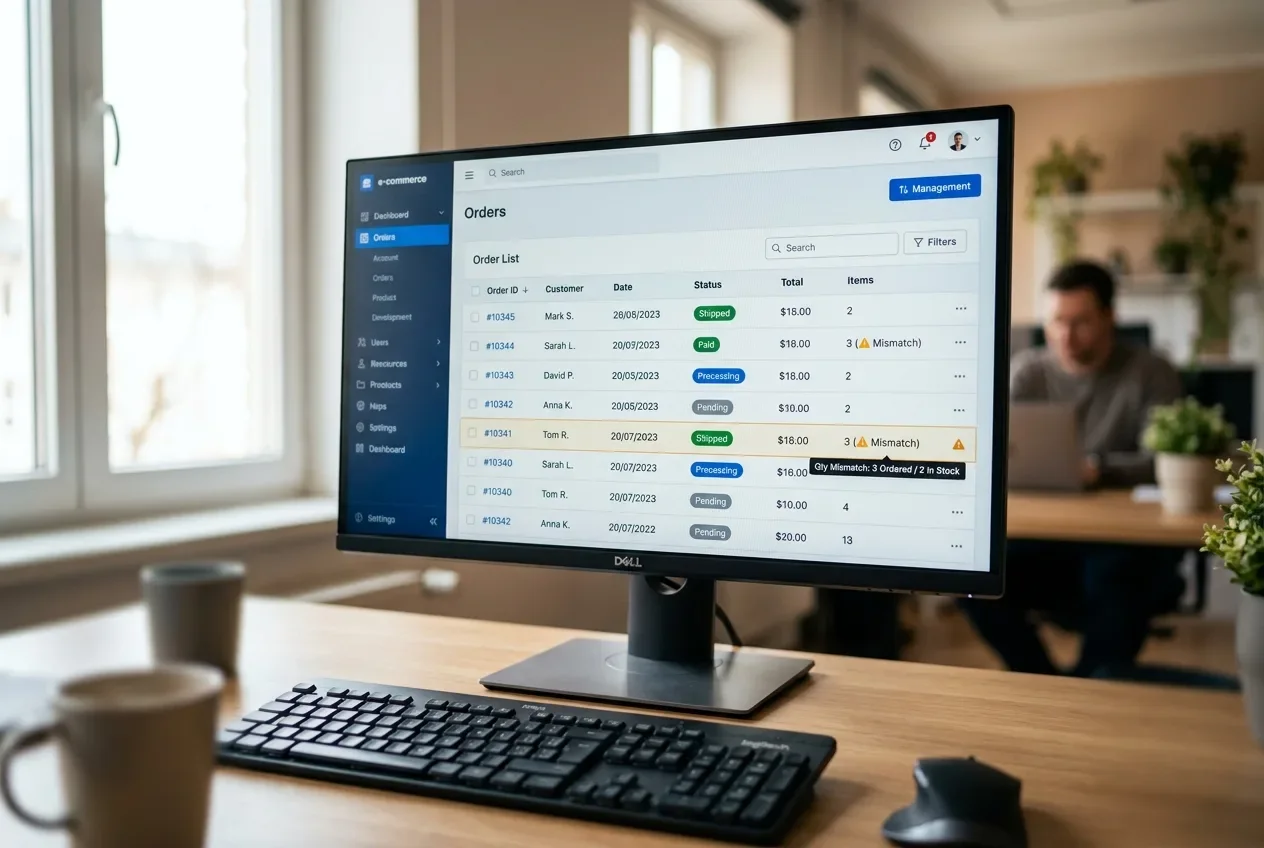
Order count badge in the WordPress menu still shows the right number, but the WooCommerce Orders screen is empty, or missing recent orders, right after a migration? This is almost never data loss. WooCommerce can store orders in two different places — the classic wp_posts tables or 4 dedicated order tables (HPOS) — and a migration can leave those two disagreeing, or leave the newer tables behind entirely. Below: how to tell which of those two you're actually looking at with one read-only command, and the fix for each.
Symptoms
- The Orders menu badge (or the count shown at the top of WooCommerce → Orders) still reflects the old number of orders
- The Orders list itself is empty, or missing orders placed shortly before the migration
- Products, pages, and the rest of the site look and work normally — this is scoped to orders specifically
- Started right after moving the store: a new host, a backup restore, or a staging-to-live cutover
If it's specifically your Analytics or Reports numbers that look wrong — not the Orders list itself — that's a different, unrelated issue. Skip to the disambiguation note below before working through the rest of this article.
Why this happens: two different causes, same symptom
WooCommerce can store order data in two places. Older installs (and stores that haven't switched) keep orders as a custom post type, in wp_posts/wp_postmeta. Newer installs can use High-Performance Order Storage (HPOS) instead, which moves orders into 4 dedicated tables: wp_wc_orders, wp_wc_order_addresses, wp_wc_order_operational_data, and wp_wc_orders_meta. A single option, woocommerce_custom_orders_table_enabled, decides which of the two is currently authoritative — set under WooCommerce → Settings → Advanced → Features. This architecture, including the exact table names and the setting that governs it, is documented directly in WooCommerce's own HPOS developer docs (opens in a new tab).
That split is exactly why the symptom above happens, in one of two distinct ways:
Cause 1 — the two backends disagree (most common). HPOS is enabled, but "compatibility mode" (the setting that keeps both backends synchronized) is off. The order count badge and the Orders list can end up reading from different sources, so they disagree even though no data was actually destroyed. This is the cheaper problem to fix, and the more common one.
Cause 2 — the HPOS tables were never migrated (the real gap for this site's audience). HPOS keeps orders in the 4 dedicated tables listed above, which WooCommerce's HPOS developer docs (opens in a new tab) name explicitly. If the backup or migration tool used to move the site exported only the standard wp_* tables — because it predates HPOS, or was set to include only selected tables — those 4 tables can be left behind during export/import, and the order rows genuinely aren't on the new host. Step 1 below confirms which of the two causes you have before you change anything.
Cause 1 — sync mismatch | Cause 2 — tables never migrated | |
|---|---|---|
What's actually wrong | Data exists in both backends, but they disagree | Data physically isn't on the new host |
What | A real unsynced-order count |
|
Fix | Enable compatibility mode + | Re-import the 4 HPOS tables from the source (Step 4) |
Data risk | None — sync reconciles, doesn't delete | None if you back up first (Step 2) — re-import doesn't touch what's already there |
Not the same bug — a quick disambiguation. If your Orders list is correct but WooCommerce Analytics or Reports shows the wrong totals, that's a separate issue: the wp_wc_order_stats table (used only by Analytics, not the Orders screen) can end up with orphaned rows that don't match any real order. The fix there is Analytics → Settings → "Import historical data", not anything covered below — see Hippoo's writeup on WooCommerce sales reports showing zero (opens in a new tab) for that specific mechanism. Don't chase the fixes below if this is actually your situation.
Fix it: lowest-risk steps first
Step 1 — Diagnose first, before touching anything
Run one read-only command to find out which of the two causes applies:
wp wc hpos statusThis reports whether HPOS and compatibility mode are enabled, plus how many orders are currently unsynced between the two backends. WooCommerce's own HPOS CLI documentation (opens in a new tab) covers this and the other commands used below.
- Compatibility mode is off, and there's a real unsynced-order count → Cause 1, go to Step 3.
- HPOS and compatibility mode are both on, but
wp_wc_ordersis empty or drastically short of what the store should have → Cause 2, go to Step 4.
No WP-CLI or SSH access? The visual equivalent is WooCommerce → Settings → Advanced → Features — check whether HPOS is enabled and whether "Synchronize orders between HPOS and WordPress posts storage" is checked. If your host doesn't expose phpMyAdmin either, ask your host to confirm the row count in wp_wc_orders before proceeding — don't guess.
Step 2 — Back up before running anything below
Export the 4 HPOS tables (wp_wc_orders, wp_wc_order_addresses, wp_wc_order_operational_data, wp_wc_orders_meta), or take a full database backup, before running a sync, verify, or re-import command. This is what makes every step below reversible.
Step 3 — Fix Cause 1: sync mismatch (non-destructive)
- Enable "Synchronize orders between HPOS and WordPress posts storage" under WooCommerce → Settings → Advanced → Features, if it isn't already on.
- Run a manual sync instead of waiting for the scheduled background batch:
wp wc hpos sync- Confirm both backends actually agree afterward:
wp wc hpos verify_dataIf specific orders still show a mismatch, wp wc hpos verify_data --re-migrate resolves them automatically, or use wp wc hpos diff <order_id> to see exactly what differs on one order and wp wc hpos backfill <order_id> --from=<store> --to=<store> for surgical, per-order reconciliation. None of this deletes data from either backend — sync reconciles two existing copies, it doesn't remove one.
Step 4 — Fix Cause 2: the HPOS tables weren't migrated
Sync can't fix this, because there's nothing on the destination side to sync with — wp_wc_orders is empty, not just out of date.
- Confirm the gap: check the row count in
wp_wc_orderson the new host against what the store should have (the source site, if it's still reachable, or the pre-migration backup). - Re-export just the 4 HPOS tables from the original source database, and import them into the new host — this is a targeted table-level restore, not a full site restore.
- If the original source isn't reachable anymore, restore from a full database backup taken before the migration, then re-apply any orders placed since.
- Going forward: when picking or configuring a backup/migration tool, confirm its table list explicitly includes
wc_ordersand the other 3 HPOS tables. Not every tool defaults to catching custom tables — see The Best WordPress Backup Plugins for how the common tools compare.
Step 5 — Narrower case: only a handful of specific orders are affected
If most orders are fine and only a few are missing or mismatched — rather than the whole table being empty — wp wc hpos diff <order_id> and wp wc hpos backfill <order_id> --from=<store> --to=<store> --meta_keys=<keys> --props=<properties> let you reconcile individual orders without touching the rest of the table. This is the lower-blast-radius option when the problem is isolated rather than sitewide.
Verify the fix
Reload WooCommerce → Orders and confirm the count matches the badge, and that the specific orders you expected to see are actually there — not just that the list has some rows. Open 2-3 individual orders and check the line items and customer details load correctly, since operational data lives in its own table (wp_wc_order_operational_data) separate from the base order row, and a partial sync can leave one without the other.
If you need to roll back
Restore the HPOS-table export you took in Step 2 if anything looks worse after a sync, verify, or re-import. This is why that step isn't optional, even though sync itself is designed to be non-destructive.
Related fixes
- Widgets or Layouts Disappeared After a Domain Change — the same "data is structurally intact but invisible to WordPress" pattern, in a different storage mechanism.
- All-in-One WP Migration Didn't Replace All Your URLs — another migration-specific data-integrity issue worth ruling out.
- The Best WordPress Backup Plugins (And Common Fixes) — what to check in a backup tool before your next migration, including HPOS-table coverage.
- Moving a WordPress Site? What Your Backup Actually Needs to Include — the full manifest this missing-orders problem is one case of.
FAQ
Did I lose my WooCommerce orders after migrating my site?
Almost certainly not. The order count badge and the Orders list can disagree for one of two reasons: WooCommerce's two order-storage backends fell out of sync (fixable with a sync command, no data lost), or a migration tool skipped the 4 HPOS order tables (fixable with a targeted re-import from the source). Run wp wc hpos status first — it tells you which situation you're in before you do anything else.
What's the actual difference between the order count badge and the Orders list?
Both are supposed to reflect the same data, but they can read from different sources when WooCommerce's two order-storage backends (the legacy wp_posts tables and the newer HPOS tables) aren't synchronized. Enabling compatibility mode and running wp wc hpos sync reconciles them without deleting anything from either side.
How do I check if my backup plugin actually includes WooCommerce's HPOS tables?
Look at the specific tables your backup tool exports, either in its settings or in the resulting SQL dump, and confirm wp_wc_orders, wp_wc_order_addresses, wp_wc_order_operational_data, and wp_wc_orders_meta are all included. Some backup tools built before HPOS existed, or configured with a narrow table list, skip custom tables like these by default.
Which backup plugin should I use for a WooCommerce store?
Any tool that backs up the full database rather than a filtered subset — UpdraftPlus, WPvivid, Duplicator, All-in-One WP Migration, BackWPup, or a host snapshot all cover the HPOS order tables. What doesn't count as a store backup: the WordPress XML exporter (Tools → Export) and WooCommerce's own CSV export, which only handle posts and product data. There's more detail in the backup plugin guide.
Every guide explains the symptom, likely causes, the safest order of checks and how to confirm the fix. How we check our guides.