A WordPress backup that runs to several gigabytes for a site with a few hundred posts is almost always carrying weight that isn't your content. The usual culprits are old backup archives stored inside the site, cache folders, and log files, all of which get swept into the new backup every time it runs. This becomes a real problem when the backup won't finish, when it fills your hosting disk quota, or when the archive is too big to download over a normal connection.
This guide covers how to find which folder or database table is actually responsible, then how to cut it down safely — starting with changes you can undo instantly and ending with the ones that need a backup of their own first. A backup you can't download or restore isn't really a safety net, so this is worth doing properly rather than guessing.
First, find out what's actually big
Don't start deleting anything yet. A backup has a handful of common bloat sources, and which one is yours decides what you do next, so measure first.
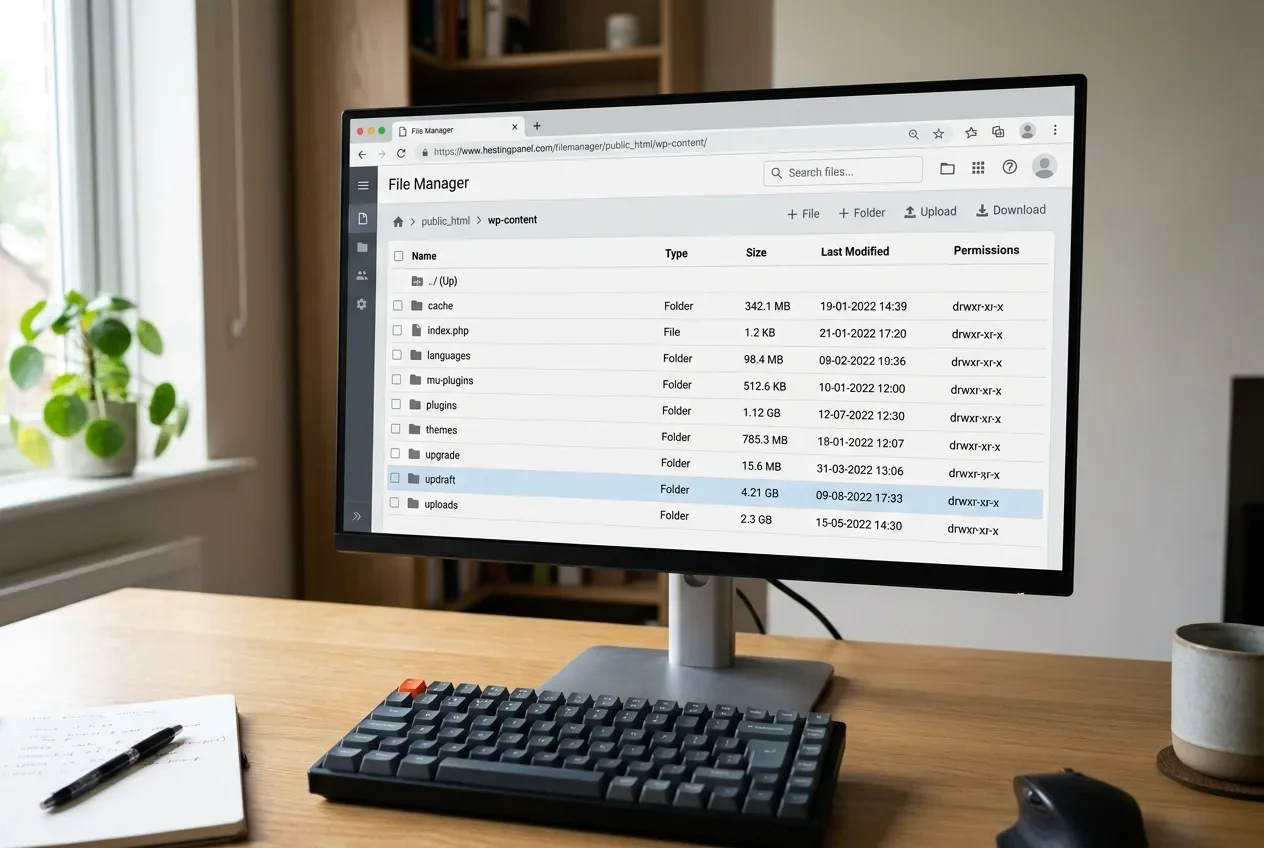
On aaPanel there are two quick ways to do this:
- File Manager — open your site's
wp-contentdirectory. aaPanel shows a folder's size when you select it, so you can see at a glance which subdirectory dominates. - Terminal (or SSH) — from your site's root, run
du -sh wp-content/* | sort -h. That prints each subdirectory's size from smallest to largest, so the offender is the last line. Run it again one level deeper inside whichever folder is biggest.
Here is what each common offender looks like, and whether it's safe to keep out of a backup:
Folder | What's taking up the space | Safe to exclude from backups? |
|---|---|---|
| Media library, plus every resized copy WordPress and your plugins generate per image, plus | No — this is real content. Trim unused image sizes instead (Level 4). |
| Old backup archives. If the job doesn't exclude these, each run packages every previous backup inside the new one | Yes — never back up your backups. |
| Generated files that rebuild themselves after a restore | Yes — nothing is lost. |
| Logs that grow without limit until something clears them | Yes — logs are diagnostic, not content. |
A | A whole second site a web-root-level backup is scooping up | Yes — back it up on its own if you need it. |
Check the database dump separately. Your backup plugin usually reports its size, or you can look at the .sql file inside a recent archive.
Why backups balloon over time
None of this means your site is broken or compromised. It's normal accumulation, and it tends to speed up.
The one that compounds fastest is backups inside backups. Say your plugin writes archives to wp-content/updraft/ and keeps the last ten. If the file backup doesn't exclude that folder, backup number eleven contains the previous ten. Backup twelve contains eleven of them. The archive keeps growing even though your actual site hasn't changed.
Caches and generated files are the next biggest waste. Page caches, minified CSS and JS, and WebP or AVIF image copies are all rebuilt automatically after a restore, so backing them up costs space and buys nothing.
Media only ever grows. Deleting a post doesn't delete the images that were in it. And every time you switch themes or add a plugin that registers a new image size, WordPress can generate that size for every image already in your library — that is what add_image_size() does (opens in a new tab), and the default set is already thumbnail, medium, medium_large, and large before any theme adds its own.
On the database side, the usual suspects are unlimited post revisions (opens in a new tab), expired transients that never got cleared, spam and trashed content, and — on WooCommerce stores — the Action Scheduler tables.
Shrink it, from lowest risk to highest
Work down this list in order and stop when the backup is a reasonable size. You may not need every step.
Level 1: exclude what doesn't belong (instant, fully reversible)
Exclusions don't delete anything. They tell the backup to skip a folder, and you can remove the rule at any time.
In your backup plugin's settings, add exclusions for:
- Any other backup or migration plugin's directory
- Cache folders —
cache/and any named cache-plugin directory - Log directories —
wflogs,wc-logs, anduploads/cache
In UpdraftPlus this is the "exclude these from Others" section in Settings, which accepts folder names, wildcards, and comma-separated lists (opens in a new tab). Its default list already skips its own backup folder and archives created by several other backup plugins, but it won't skip caches or logs unless you tell it to. You can also drop a file named .donotbackup into any directory to exclude that directory and everything under it.
Re-run the backup and compare the size. Excluding caches and nested backups alone often cuts it in half or more.
Level 2: delete server-side clutter (reversible with the backup you just took)
- Delete old backup archives from the server. Download the ones you want to keep first, then remove the rest. Set your plugin to retain fewer copies — two or three is plenty when they're also stored offsite.
- Clear caches through each plugin's own button, not by deleting folders by hand. Then load the site to confirm it still renders correctly.
- Delete plugins and themes you don't use. Deactivating isn't enough — an inactive plugin still sits on disk and still goes into the backup. Keep one default theme as a fallback.
Level 3: clean the database (take a database backup first)
This is where tools like WP-Optimize point people first. It's worth doing, but it's usually not the biggest win on total file size.
- Cap post revisions. Add
define( 'WP_POST_REVISIONS', 5 );towp-config.php. WordPress stores every revision by default (opens in a new tab); once you set a limit, old revisions are deleted automatically the next time you edit that post. - Clear expired transients. Run
wp transient delete --expiredfrom aaPanel's Terminal — that deletes all expired transients (opens in a new tab), which WordPress otherwise leaves in the database until something requests them. - Empty spam and trash. On WooCommerce, open Status → Scheduled Actions and lower the Action Scheduler retention period if those tables have grown large.
- Optimize the tables afterward with
wp db optimize, or the Optimize option in phpMyAdmin.
Level 4: media (do this last, and carefully)
This step is the most likely to produce a visible mistake, so leave it until the others are done.
- Remove image sizes you don't use. If a past theme or plugin registered sizes nothing renders anymore, stop generating them and regenerate thumbnails so the unused files clear out. Test on a few images before running it across the whole library.
- Offloading
uploads/to object storage (Amazon S3, Cloudflare R2, or similar) and excluding it from the backup is a legitimate option for very large media libraries, but it's an architecture change rather than a cleanup, and it's out of scope here.
Verify the smaller backup still restores
The point of all this is a backup you can actually use in an emergency. An exclusion rule that catches the wrong folder — a must-use plugin directory, or uploads itself — gives you a smaller archive that restores to a broken site, and you won't find out until you try.
So test it. Import the new backup into a staging site, or onto your own computer with Local — the step-by-step is in our Local restore guide. Confirm the front end loads, wp-admin works, and, if you run a store, a few orders open with real data.
One distinction worth being clear on: exclusions shrink the archive, not your server. If your goal was to free disk space on the host, you have to actually delete the old archives and files in Levels 2 and 3 — excluding them from future backups doesn't reclaim anything.
If something goes wrong
- An exclusion went too far: remove the rule and run the backup again. Nothing was deleted.
- You deleted something you needed: restore it from the full backup you took before starting. This is the whole reason for that first step.
- A database cleanup caused a problem: restore the database-only backup from Level 3. Revision and transient cleanup is safe in normal use, but the backup is there in case a plugin stored something unexpected in one of those tables.
Related fixes
- The Best WordPress Backup Plugins (And Common Fixes) — the pillar guide, including which hosting limits actually decide whether a restore succeeds.
Packet Bigger Than max_allowed_packeton Backup Import — what to do when the database dump itself is still too big to import after cleanup.- Restore a Backup to Local by Flywheel First — how to test that the slimmed-down backup restores to a working site.
- Your WordPress Backups Might Not Be Running — if the backup was silently failing to complete, its size and your host's time limit may be why.
FAQ
Is it safe to exclude folders from my WordPress backup?
Yes, for the right folders. Cache directories, log folders, and other backup plugins' archives are all safe to exclude — they're either regenerated automatically or duplicated elsewhere. Never exclude wp-content/uploads, wp-content/plugins, wp-content/themes, wp-content/mu-plugins, or the database. Those are your actual site.
Why did my backup get smaller but my server's disk usage didn't change?
Because an exclusion only tells the backup to skip a folder — it doesn't remove anything from the server. To reclaim disk space you have to delete the old backup archives and unused files directly, through your host's file manager or your backup plugin's retention settings.
Will deleting post revisions or clearing transients break my site?
No. Revisions are old saved copies of your posts, and the current version is left untouched. Expired transients are cached data with a stated expiry that WordPress rebuilds on demand. Both are routine cleanup. Take a database backup first anyway, as a habit, before any bulk database change.
Every guide explains the symptom, likely causes, the safest order of checks and how to confirm the fix. How we check our guides.