If you've never actually restored a WordPress backup, you don't really know it works — you have an assumption, not a safety net. The safest place to test that is nowhere near your live site: on your own computer, using Local (the free tool most people still know as Local by Flywheel). This isn't a "my site is broken" article. It's how to verify a backup restores clean before you're ever under pressure to find out, plus the one gotcha most tutorials skip that makes a normal, working backup look broken on import.
What you'll need before starting
- Local installed — free, available for Mac, Windows, and Linux
- A full site backup: your
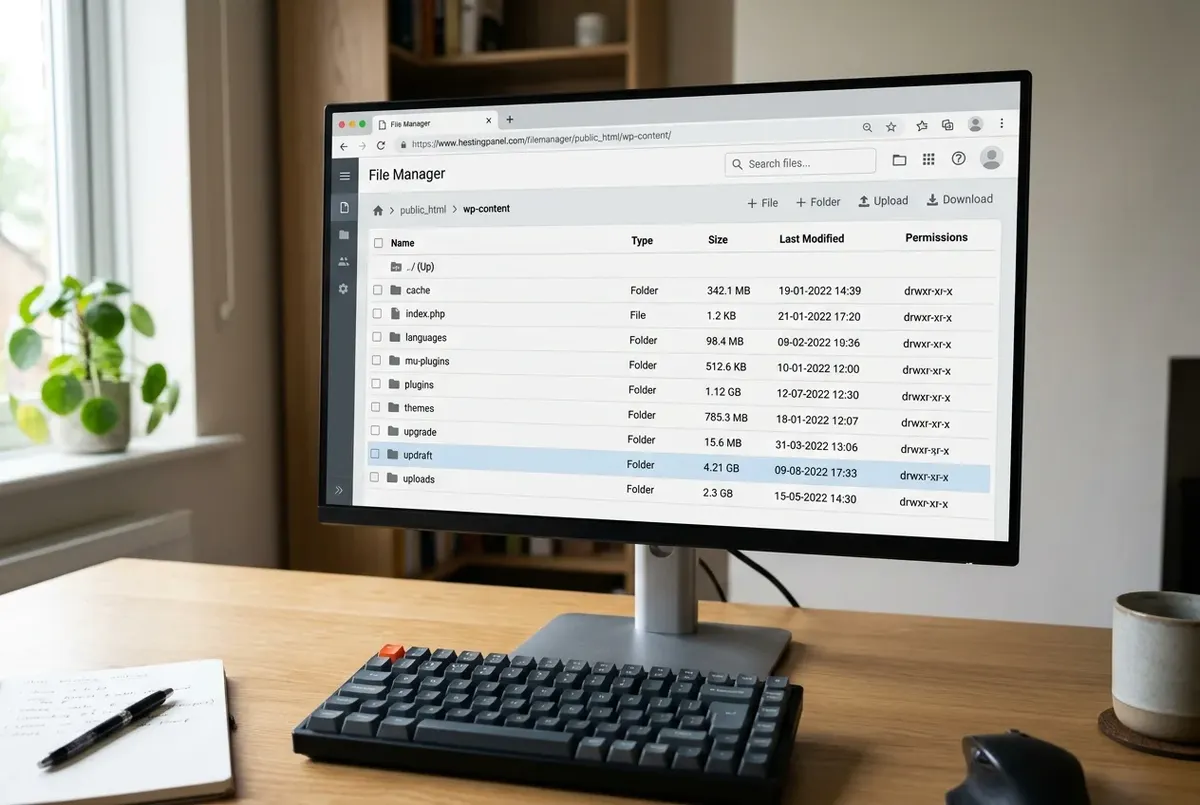
wp-contentfolder (plugins, themes, uploads) and a database export as a.sqlfile, from whatever backup plugin you already use (UpdraftPlus, WPvivid, or similar) - Nothing else. Every step below happens on your own machine — there's no way for this process to affect your live site
Importing the backup into Local
Local's importer is more general than it might seem: it doesn't need a backup in one specific plugin's proprietary format. It needs exactly two things — a wp-content folder, and a database dump as a .sql file. Local generates fresh WordPress core files itself and slots your content and database into them, according to Local's own official documentation (opens in a new tab).
Most backup plugin exports already contain both pieces, just not always packaged the way Local expects. If your export doesn't already have wp-content and a .sql file sitting together at the top level of the archive, extract the zip and repackage those two pieces into a single zip before importing — Local doesn't need anything else from a typical backup plugin's export (its own config files, plugin-specific manifests, and so on aren't required).
To actually import:
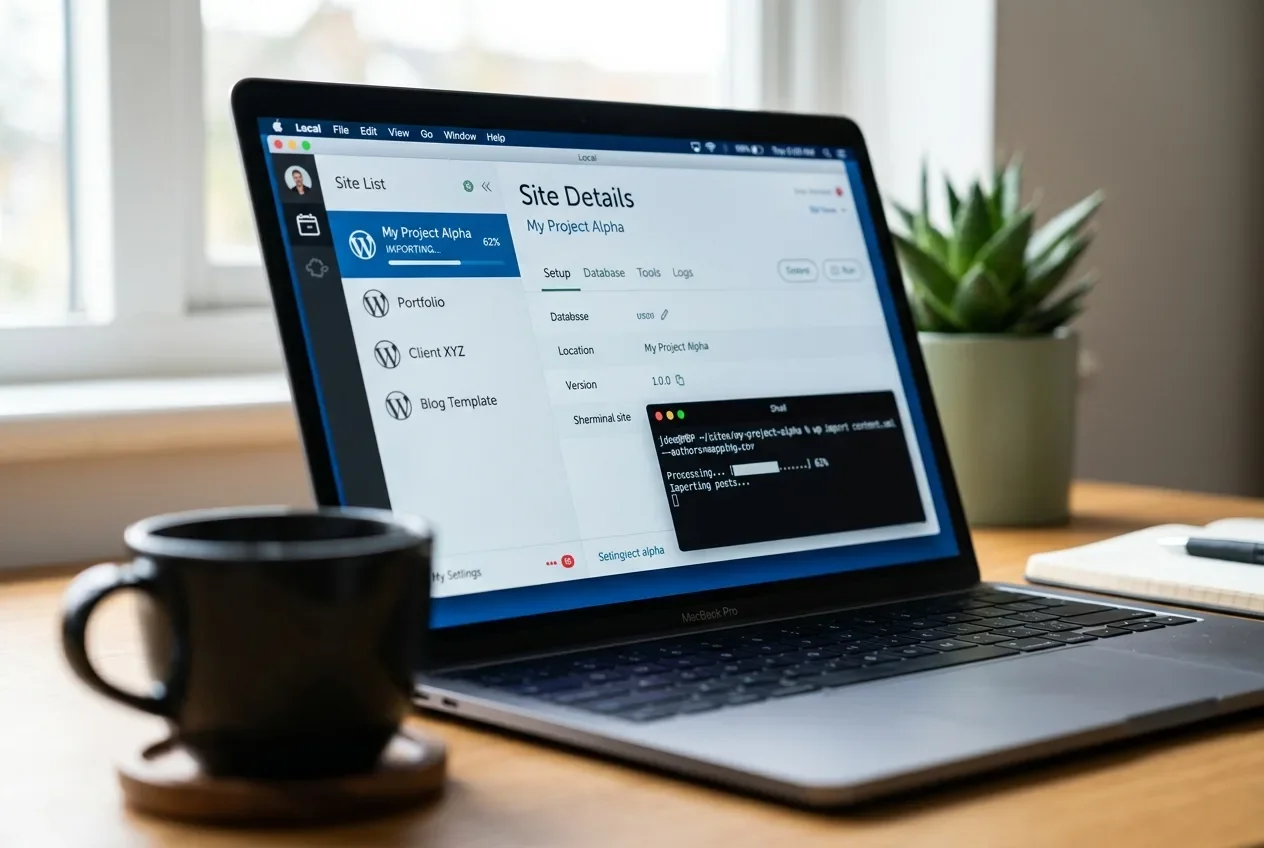
- Open Local and either drag the zip directly onto the app, or use the menu to Import a site
- Local will ask for a local site name (this becomes part of the local URL, e.g.
sitename.local) and where to store it - Wait for Local to build the environment — this can take a few minutes depending on backup size
The gotcha most tutorials skip: the site redirects back to your live URL
The import finishes, Local says it succeeded, but when you visit the local site, your browser redirects straight to your live production URL instead of loading the local copy. If this happens, nothing actually went wrong with the import — it's a well-documented, common gotcha, not something you did incorrectly.
Here's why: UpdraftPlus's free version has no built-in domain-replacement step. That's specifically a feature of UpdraftPlus's paid Migrator add-on. When Local imports your database as-is, every URL that was in it — including the ones baked into serialized data — still says your live domain. WordPress's own URL options (siteurl, home) still point at production, so the site redirects there the moment it loads. This exact symptom is corroborated by multiple independent reports in Local's own official community forum (opens in a new tab) — it's a known interaction between free-tier UpdraftPlus and any import tool that doesn't rewrite URLs for you, not a Local-specific bug.
Backup or migration tools that include their own domain-replacement step (Duplicator, All-in-One WP Migration) tend to need less manual cleanup here — but don't assume any import is automatically clean. Verify either way using the steps below.
The safe fix: Local's built-in shell and a serialization-safe search-replace
Local ships with WP-CLI already set up and pointed at the right install — you don't need to install or configure anything separately.
- In Local, right-click your imported site and choose "Open Site Shell." This opens a terminal already connected to the correct WordPress install.
- Preview the change first:
wp search-replace 'https://yourlivesite.com' 'http://sitename.local' --all-tables --precise --dry-run- Review the output, then run it again without
--dry-runto actually apply it.
The --precise flag matters here for the same reason it matters everywhere else on this site: a plain text find-and-replace on a WordPress database can corrupt PHP-serialized data, because serialized strings encode their own length as part of the format. --precise unserializes each value, replaces the domain, and correctly re-serializes it, instead of leaving a broken string behind — see WP-CLI's own search-replace documentation (opens in a new tab) for the full flag reference. This is the exact same flag and reasoning already covered in more depth in All-in-One WP Migration Didn't Replace All Your URLs — follow that article's Step 3 if you want the fuller walkthrough on handling multiple URL formats (http:// vs https://, with and without www).
Verify the restore actually worked
Reload the site under its local URL (http://sitename.local, not the live domain) and confirm it loads without redirecting anywhere. Spot-check a handful of pages and posts to confirm real content is there, not placeholders or errors. If the site you're testing runs WooCommerce, open a few orders specifically — order data lives partly in its own set of database tables, so it's worth confirming separately from the rest of the content actually came through (see WooCommerce Orders Show a Count But the List Is Empty if that specific check turns up a mismatch).
This is the actual point of the exercise: you now know, with certainty rather than an assumption, that this backup restores to a working site — verified somewhere with zero risk to anything live.
If something goes wrong
Nothing here ever touches your live site, so there's no rollback in the usual sense. If a step goes sideways, delete the Local site and re-import from the same backup file — you're not risking anything by starting over. If the import itself fails partway through, the most common cause is a backup archive that's missing one of the two things Local actually needs: confirm your zip genuinely contains a wp-content folder and a .sql database file before assuming Local itself is broken.
Related fixes
- The Best WordPress Backup Plugins (And Common Fixes) — the source of the "test one full restore" advice this article walks through step by step.
- All-in-One WP Migration Didn't Replace All Your URLs — the fuller WP-CLI search-replace walkthrough referenced above.
- WooCommerce Orders Show a Count But the List Is Empty — what to check specifically if you run a store and want to confirm order data restored correctly.
FAQ
Do I need the paid version of UpdraftPlus to restore a backup into Local?
No — the free version works fine for testing a restore in Local. You just need one extra manual step afterward (a WP-CLI search-replace) to fix the local site's URLs, since free UpdraftPlus doesn't rewrite domains for you the way its paid Migrator add-on does.
Why does my imported site in Local redirect to my live website?
Because the imported database still has your live site's URLs saved in it, including WordPress's own siteurl and home options. This is expected with backup tools that don't include a domain-replacement step, like free-tier UpdraftPlus — running a serialization-safe WP-CLI search-replace inside Local's site shell fixes it.
Is testing a backup in Local actually the same as a real restore?
It verifies the parts that matter most: whether your backup file actually contains a complete, working copy of your files and database, and whether it restores without errors. It won't catch every possible difference between your local machine and your live hosting environment (PHP version, server configuration), but it's a genuine, free way to confirm the backup itself isn't corrupted or incomplete before you ever need to trust it under pressure.
Every guide explains the symptom, likely causes, the safest order of checks and how to confirm the fix. How we check our guides.