If your old domain is still showing up somewhere on the site after an All-in-One WP Migration import — in image URLs, links inside post content, a theme's saved settings, or elsewhere — the import itself usually didn't fail. The plugin replaces URL references automatically during import (opens in a new tab), serialized data included, but a URL stored in a form it didn't match (http:// instead of https://, www vs non-www, an old staging domain, or an escaped URL inside page-builder JSON) or stored outside the database can survive. The fix is to find exactly what's left and clean it up with a serialization-safe WP-CLI search-replace.
Symptoms
- Images or media files fail to load, and viewing the page source shows they're still pointing at the old domain.
- Links inside post or page content go to the old URL instead of the new one.
- Visual elements from a page builder or theme (background images, logo, custom CSS) reference the old domain and appear broken.
- The site mostly works, but specific plugin or theme settings pages show broken previews or incorrect saved URLs.
Likely causes, in order of how often they actually happen
- The old URL was stored in a form the automatic replacement didn't match. Variants of the source URL — http:// instead of https://, www vs non-www, an old staging domain, or a URL escaped as
https:\/\/olddomain.cominside JSON data — are different strings, and can be left behind even when the main URL was replaced everywhere. - URLs are stored in serialized PHP arrays with an unusual structure. WordPress stores a lot of settings as serialized data, where each string's length is recorded as part of the data structure. A plain text search-replace that doesn't account for this can corrupt the serialization even when it does find a match — which is part of why the built-in tool and any manual approach need to be serialization-aware, not just a raw text swap.
- Extra Find & Replace pairs were set incorrectly, or not at all. The
Find <text> Replace with <text>option is on the Export screen of the source site (ServMask's user guide (opens in a new tab)), and it only replaces exact strings — a missing https://, trailing slash or www. variant means it silently finds nothing. - Hardcoded URLs outside the database — occasionally a theme or child theme has a domain hardcoded directly into a template file or a custom CSS file rather than stored in the database at all, which no database search-replace tool (built-in or WP-CLI) will touch.
Fix it: lowest-risk steps first
Step 1 — If you still have the source site, re-export with extra Find & Replace pairs
The plugin's own way to handle URL variants is on the export side, not the import side. If the source site is gone, skip to Step 2.
- On the source site, go to All-in-One WP Migration → Export and open
Find <text> Replace with <text> in the database(ServMask's user guide (opens in a new tab)). - Add one pair per variant of the old URL still showing on the new site — for example
http://olddomain.com→https://newdomain.comandhttps://www.olddomain.com→https://newdomain.com. Check the exact form by looking at a raw URL still showing on the broken site. - Export, take a database backup of the destination, re-import, and check the affected pages again. Anything still pointing at the old domain goes through Steps 2 and 3.
Step 2 — Identify exactly what's still broken
- View the page source (right-click → View Page Source, or Ctrl+U) on a page showing the issue, and search for your old domain to see exactly which URLs weren't updated.
- Note whether these are inside post content, a widget, a theme option, or a plugin setting — this tells you which database table is still holding the old value, which helps confirm the fix worked afterward.
Step 3 — Run a serialization-safe WP-CLI search-replace for anything the plugin's tool missed
This is the most reliable way to catch what the import missed, and it handles serialized data correctly.
- Confirm you have WP-CLI access — via SSH if your host provides it, or through a hosting panel's built-in WP-CLI/terminal feature if SSH isn't available.
- Run a dry run first so nothing changes yet:
wp search-replace 'https://olddomain.com' 'https://newdomain.com' --dry-run --precise- Review the dry-run output — it lists how many replacements it would make and in which tables, so you can sanity-check that it's finding the same URLs you spotted in Step 2.
- Run it for real, keeping the
--preciseflag:
wp search-replace 'https://olddomain.com' 'https://newdomain.com' --preciseWP-CLI's search-replace handles PHP serialized data safely by default (opens in a new tab); --precise additionally forces PHP-based matching instead of SQL, which is slower but more thorough. Either way, this is what separates it from a raw SQL UPDATE ... REPLACE() query, which corrupts serialized strings.
- If your old URLs appear in more than one format (with and without
www., orhttp://vshttps://), run the command again for each variant.
Step 4 — Check for hardcoded URLs outside the database
If specific broken references remain after Step 3, they may not be in the database at all.
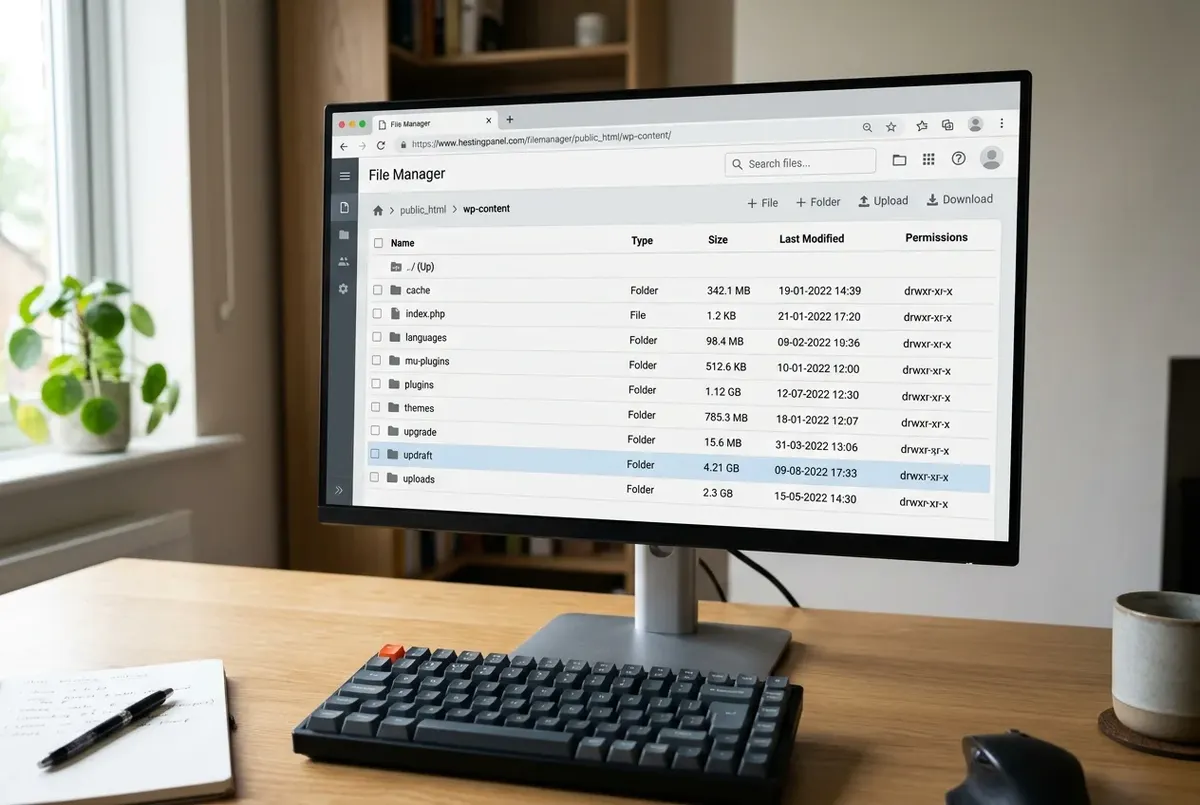
- Search the active theme's files (via FTP or your host's file manager) for the old domain — check
functions.php, any custom CSS files, and template files for a hardcoded URL. - Update these manually, and note them somewhere so you remember to check the same spots on future migrations.
Verify the fix
- View source on the pages that were previously broken and confirm no instances of the old domain remain.
- Click through main navigation, check the media library for broken image thumbnails, and load a few posts with embedded images or links.
- Re-run the WP-CLI dry-run command from Step 3 one more time (
--dry-run) and confirm it now reports zero remaining matches.
If you need to roll back
If a search-replace produces unexpected results (missing content, broken formatting, or visibly corrupted data on a page), restore the database backup you took before starting, per the warning above. Because you ran a --dry-run first and used --precise, this scenario should be rare — but restoring the backup and re-running Step 3 with a narrower, more specific search string (for example scoping to just _options values instead of the full database) is the safe next attempt if something looks off.
Related fixes
- The Best WordPress Backup Plugins (And Common Fixes) — For a full comparison of backup and migration plugins, and what actually determines whether a restore will work.
- Duplicator Package Stuck at Building — For a different migration plugin's stuck-build issue.
- WPvivid Restore Stuck or Failed — For backup/restore issues rather than migration.
- Widgets or Layouts Disappeared After a Domain Change — If you didn't use this plugin, or the symptom is specifically vanished widgets rather than broken URLs.
- WooCommerce Orders Show a Count But the List Is Empty — If you run a store and it's orders, not URLs, that look wrong after the migration.
- Moving a WordPress Site? What Your Backup Actually Needs to Include — the complete checklist of what a migration has to carry over, before the URL step.
FAQ
Why did All-in-One WP Migration miss some URLs at all?
Its automatic replacement targets the site URL it knows about. URLs saved in a different form — another scheme, the www variant, an old staging domain, or escaped inside JSON — are different strings, so they're left alone unless you add them as Find & Replace pairs at export or clean them up afterward, as in Step 3.
Is it safe to use a plain SQL find-and-replace query instead of WP-CLI?
No — this is the one thing to actively avoid. A raw SQL UPDATE table SET column = REPLACE(column, 'old', 'new') doesn't know that serialized PHP data records each string's byte length as part of its structure, so replacing a shorter or longer string inside a serialized value corrupts the data. WP-CLI's search-replace (opens in a new tab) unserializes, replaces and re-serializes those values for you.
Do I need the paid version of All-in-One WP Migration to fix this properly?
No — the WP-CLI approach in Step 3 is free and works regardless of which version of the plugin you use. The paid Unlimited Extension mainly removes the free version's import size limit; it doesn't change how URLs are matched.
Every guide explains the symptom, likely causes, the safest order of checks and how to confirm the fix. How we check our guides.