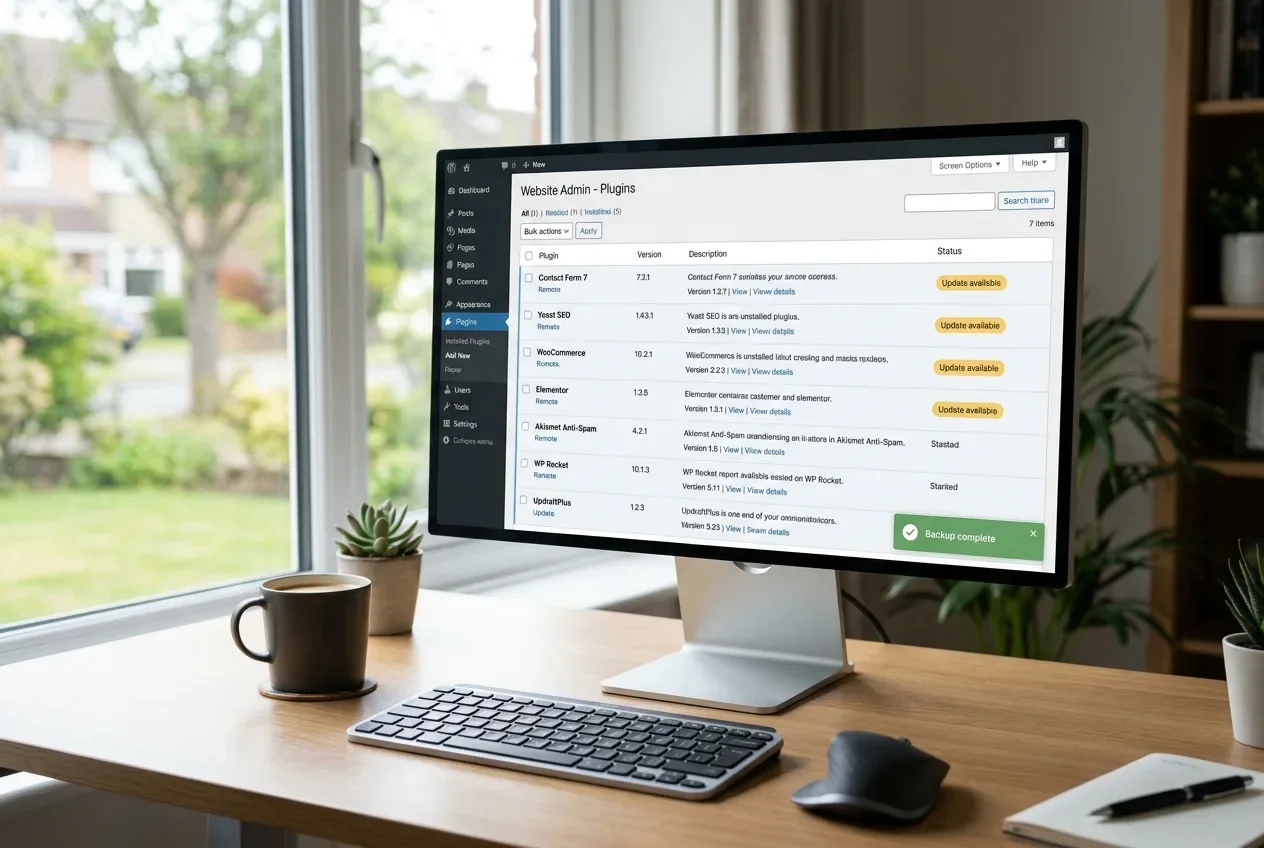
The 60-second version: open your backup plugin, click Backup Now with the database and files both included, wait until it says the backup finished, then run your plugin updates. That's the whole safety net. A plugin update can white-screen your site, quietly break a layout, or run a database change that doesn't undo cleanly — and a backup from two minutes ago turns any of that into a five-minute rollback instead of an evening of troubleshooting. WordPress's own documentation puts it plainly: "it's a good idea to back up your website" (opens in a new tab) before you update, and "always before an upgrade" (opens in a new tab) for the database specifically.
The rest of this is what the backup needs to contain, the faster and slower options, and what to do if an update breaks the site anyway.
The 60 seconds, step by step
- Open your backup plugin — the UpdraftPlus tab, WPvivid, or your host's backup panel.
- Click Backup Now. Make sure both include the database and include your files are checked. For a pre-update backup you want both (see the next section for why).
- Wait for the confirmation. The message you're waiting for is "backup succeeded" or "the backup apparently succeeded and is now complete" — not "backup started." This is the step people skip, and a half-finished backup is not a safety net.
- Now run your updates.
On a small content site this genuinely is about a minute. On a large or media-heavy site it takes longer, which is a good reason to keep your backups lean — see why your backup file might be so large if a routine backup takes ten minutes.
What the backup actually needs to contain
The part a quick "just copy the plugins folder" approach misses is the database.
Plugin updates frequently run database changes on activation — new tables, altered columns, migrated option values. WooCommerce, membership plugins, form builders, and anything with its own settings screens all do this. If an update breaks the site and you roll back only the plugin files, the database still has the new schema in it, and the old plugin code may not know what to do with it. You can end up worse off than either version.
So: back up the database and the files together. In practice that means a normal full backup — the same Backup Now click, nothing special. You don't need a fresh full backup if your scheduled one already ran today and nothing has changed since, but clicking the button is faster than reasoning about whether that's true.
Which approach for which update
Situation | What to do first |
|---|---|
Routine minor plugin update, content site | The 60-second Backup Now, then update |
Major-version release, WooCommerce, or a page builder | Update on staging first, then production |
"About to do something big," multiple updates at once | A host snapshot, then work through the updates |
Plugins set to auto-update | Verified scheduled backups + a rollback path (you can't back up "before") |
Even faster: a host snapshot
Many hosts, and aaPanel, offer a one-click full snapshot. It's often quicker than a plugin backup because it copies at the filesystem level instead of zipping through WordPress.
The trade-offs: a server-level snapshot can include more than one site, restoring it is usually all-or-nothing, and it's only as reachable as your host's control panel. It's a good fit for "I'm about to do something big and I want a clean line to fall back to." A plugin backup is more granular when you just want to undo one thing.
Slower but safer: update on staging first
For updates that actually matter, the correct approach is to clone the site to a staging copy, run the updates there, click through the important pages, and only then update production.
Worth the extra time for: major-version plugin releases, anything touching WooCommerce checkout or a page builder, and any site where an hour of downtime costs real money. Not worth it for routine minor updates on a content site — that's what the 60-second backup is for.
No staging environment? You can test the same thing for free on your own computer — see restoring a backup to Local first.
If your plugins auto-update
If you've turned on auto-updates (the per-plugin toggle on the Plugins screen), there's no "before" to back up at — the update just happens on WordPress's schedule.
Two ways to stay covered:
- Keep scheduled backups running and verified, and keep a rollback path ready. Check that your scheduled backup is actually running — a backup you assume is happening but isn't is the worst case here.
- Turn auto-updates off for the plugins you can't afford to have break silently — WooCommerce, your form plugin, your page builder — and update those by hand with the 60-second backup. Leave auto-updates on for small, low-risk plugins if you want.
WordPress has a built-in fallback called Recovery Mode (opens in a new tab): if a plugin update causes a fatal error, WordPress pauses that plugin and emails the admin a recovery link. It's genuinely useful, but it only fires on a fatal error — it does nothing for a silent layout break or a bad data migration, and it pauses the plugin rather than restoring your data.
If an update breaks the site anyway
- Restore the backup you just took. This is the entire reason for the 60 seconds. Full-site or database-plus-files restore, from the same plugin you used to make it.
- Or revert just the one plugin with WP Rollback (opens in a new tab) (a free plugin, 300,000+ installs). From the Plugins screen it adds a "Rollback" link that lets you reinstall any previous version. It works for plugins hosted on WordPress.org — not premium or externally hosted ones — and it's faster than a full restore when you already know which plugin caused the problem. Note it doesn't undo a database change the update made, which is why the backup still matters.
- If the site is stuck showing "briefly unavailable for scheduled maintenance," that's a separate, quick fix — see WordPress stuck in maintenance mode.
- If you're seeing a critical error page instead, start with fixing a WordPress critical error.
- If you can't reach wp-admin at all to undo anything, deactivate the plugin via phpMyAdmin or the file manager.
Related fixes
- The Best WordPress Backup Plugins (And Common Fixes) — which backup tool to use and what determines whether a restore will actually work.
- Your WordPress Backups Might Not Be Running — confirm the scheduled backup you're relying on actually happens.
- WordPress Stuck in Maintenance Mode After a Failed Update — the 60 seconds above is what prevents this one.
- Why Is My WordPress Backup File So Large — a lean backup is a fast backup.
FAQ
Do I really need to back up before every single plugin update?
Not before every routine minor update, if your scheduled backups are running and verified. But always back up before major-version updates, before anything that touches WooCommerce or a page builder, and before any update on a site where downtime costs money. When in doubt, the backup takes a minute.
Can't I just roll back the plugin instead of restoring a whole backup?
Often, yes — WP Rollback reverts a single WordPress.org-hosted plugin to its previous version from the Plugins screen, which is quicker than a full restore when you know which plugin broke things. The catch: it doesn't undo a database change the update ran. If the update altered your data, you still need the backup.
My plugins auto-update. How do I back up before that?
You can't time it, so do one of two things: keep scheduled backups running and verified with a rollback path ready, or turn auto-updates off for the handful of plugins you can't afford to have break silently and update those by hand with the 60-second backup.
Every guide explains the symptom, likely causes, the safest order of checks and how to confirm the fix. How we check our guides.