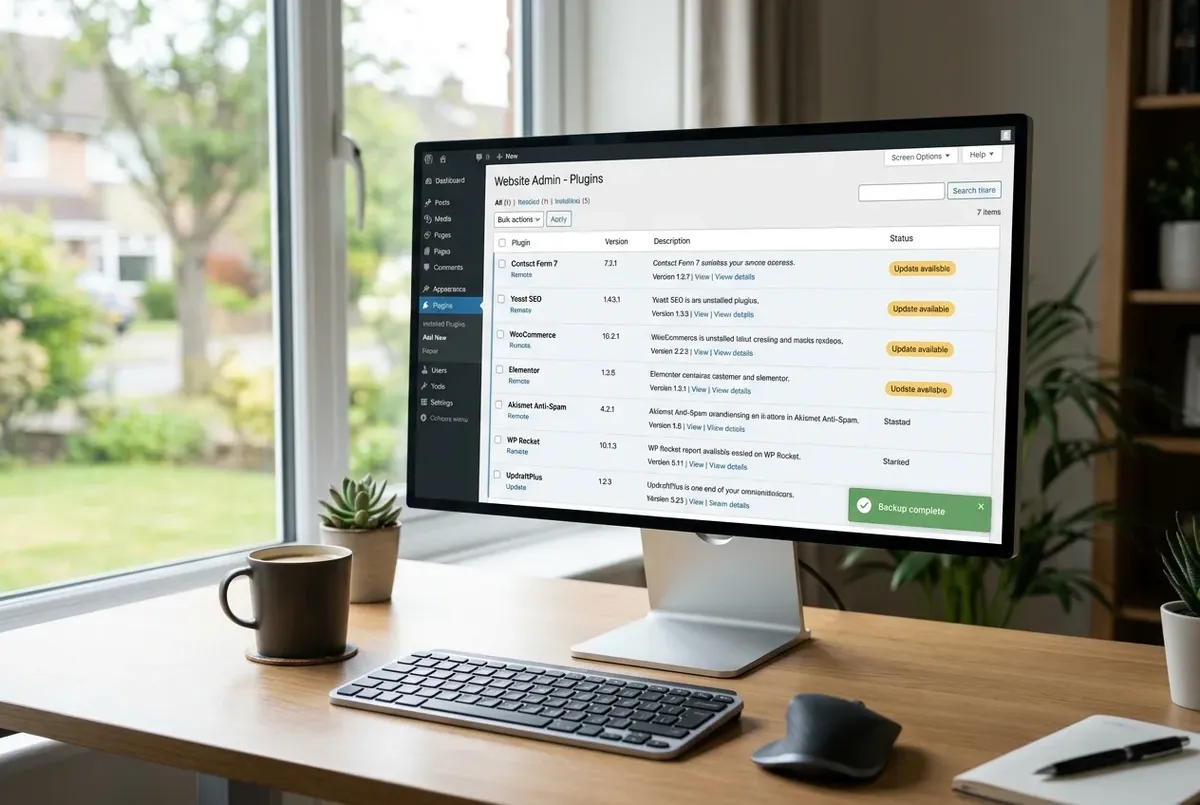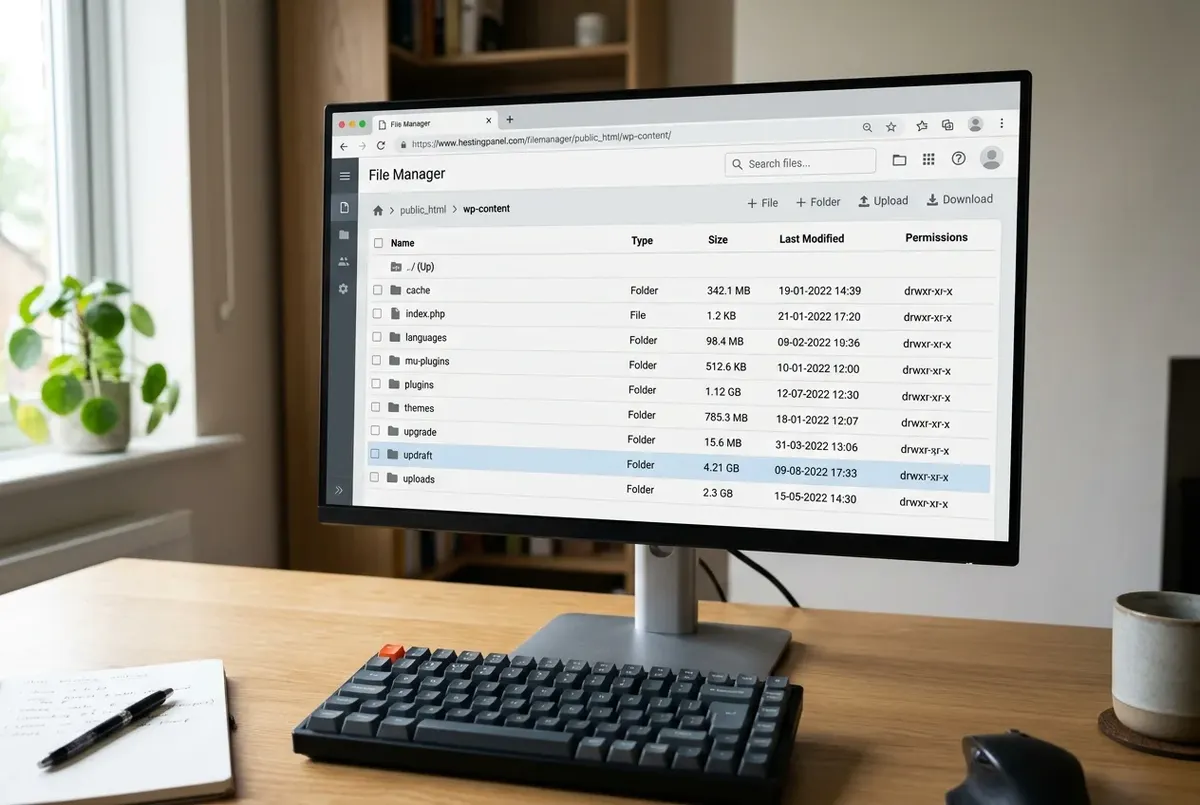
A broken plugin can lock you out twice over: the site white-screens or throws a critical error, taking wp-admin down with it, and the standard fix — rename the plugin folder over FTP — isn't available because you don't have FTP, SFTP, or file manager access either. If phpMyAdmin (or your host's equivalent database tool) is still reachable, you don't need file access at all. WordPress stores which plugins are active in the database, and you can turn them off from there directly. This site's own aaPanel-hosted WordPress exposes phpMyAdmin the same way most hosting panels do, which is exactly the access this fix relies on.
Symptoms
- The site shows a white screen, "There has been a critical error," or a 500 error, usually right after installing, updating, or activating a plugin
- wp-admin is unreachable — the same error blocks the dashboard, not just the front end
- No FTP, SFTP, or file manager credentials are available — only database access through your hosting panel's phpMyAdmin (or equivalent)
Missing FTP access isn't unusual. Some hosts disable FTP entirely by default now and only expose a file manager or database tool through the panel, as a security default rather than an oversight. Others hand off site management between people over time, and the FTP credentials simply never got passed along, while the hosting panel login did. Either way, if phpMyAdmin is what you actually have, the fix below doesn't need anything more than that.
Where WordPress actually stores which plugins are active
On a single-site WordPress install, active plugins live in the wp_options table, in the row where option_name equals active_plugins — the same table WordPress's Options API (opens in a new tab) uses for every other site setting, not something specific to plugins. Run this to find it:
SELECT * FROM wp_options WHERE option_name = 'active_plugins';The option_value column holds a PHP-serialized array listing every active plugin's file path, formatted like this:
a:2:{i:0;s:19:"akismet/akismet.php";i:1;s:23:"elementor/elementor.php";}Each s:19:"..." entry encodes its own string length (19 characters, in this example) as part of the format, and the leading a:2: declares there are exactly 2 entries. That self-counting structure is the whole reason manual edits go wrong — more on that below.
If you're on WordPress multisite, network-activated plugins live somewhere different: the wp_sitemeta table, row meta_key = 'active_sitewide_plugins' — the row WordPress itself reads via get_site_option() (opens in a new tab) rather than the single-site get_option(). The format is also different — an associative array of plugin-path.php => activation-timestamp pairs, not the indexed list above. Don't apply the single-site fix below to this row directly; the logic is the same, but the syntax isn't interchangeable.
Fix it: lowest-risk steps first
Step 1 — Save the current value before touching anything
Open the active_plugins row in phpMyAdmin, select the entire option_value text, and copy it into a text file on your own computer. This is the step that makes everything below reversible — skip it and you're troubleshooting blind if something goes wrong.
Step 2 — Deactivate every plugin at once (safe, and the right first move)
Replace the option_value with:
a:0:{}That's an empty serialized array — WordPress reads it as "zero plugins active" and doesn't complain or need anything else adjusted. Save the change and reload the site. If it loads normally now, a plugin was the cause, and you've confirmed that without needing to identify which one yet.
This is deliberately the default recommendation here, not the last resort. Every plugin off at once avoids the one real risk in this whole process (Step 4 below) for the most common situation: a broken site where you just need it back up.
Step 3 — Reactivate through wp-admin, one at a time
Once the site loads again, log into wp-admin's Plugins screen. Reactivate plugins individually, checking the site after each one — whichever reactivation brings the error back is your culprit. Leave that one off, or investigate its plugin page for a compatible update.
Doing this through wp-admin instead of the database means you never have to hand-edit the serialized array again. It's slower than reactivating everything in one database edit, but every step is a plain WordPress screen, not string manipulation.
Step 4 — If you need one specific plugin off while the rest keep running
This is the narrower case, and the one where the serialization format actually matters. Removing a single entry from a multi-plugin array takes three coordinated edits: delete its exact s:LENGTH:"path"; segment, decrement the leading a:N: count to match, and renumber the i: keys so they run consecutively from zero. Get any one of those wrong — miscount a string's length, forget to lower the array count, leave a gap in the key numbering — and the option can end up corrupted. That damage isn't limited to the plugin you meant to remove; a corrupted array can break every plugin listed in it.
If you genuinely need this — most readers won't, since Steps 2-3 solve the actual problem — work from the backup you saved in Step 1 and make the single change. Then double-check the edited value's a:N: count matches the number of s: entries still present before saving. WP Engine's own documentation on serialized WordPress data (opens in a new tab) covers exactly why a mismatched length or count corrupts the option, if you want the full mechanics before attempting this.
Verify the fix
Load the site's front end first, then wp-admin. Confirm the specific error is actually gone, not just that some page loads — a white screen can sometimes shift into a different broken state (a login redirect loop, a missing-asset layout break) that's easy to mistake for "fixed" on a quick glance.
If you need to roll back
Paste the original option_value you saved in Step 1 back into the same row. This restores exactly the plugin state you started with, which is why saving it first isn't an optional step — it's the entire rollback plan.
Related fixes
- Fix a WordPress Critical Error After Upgrading to PHP 8.1 — if you have FTP access, this covers finding the specific plugin at fault via the debug log.
- WordPress White Screen After Switching PHP Version in aaPanel? Do This — the aaPanel-specific version of the same troubleshooting path.
- The Best WordPress Backup Plugins (And Common Fixes) — for preventing this situation next time.
FAQ
Can I deactivate just one WordPress plugin from phpMyAdmin without breaking anything?
Yes, but it's the riskiest of the methods here, since it means hand-editing a PHP-serialized array's length and count values correctly (Step 4). For most situations, it's safer and just as effective to deactivate all plugins first (Step 2), then reactivate the ones you want through wp-admin once the site is reachable again.
What's the difference between wp_options and wp_sitemeta for deactivating plugins?
Single-site WordPress stores active plugins in wp_options as an indexed array (active_plugins). Multisite network-activated plugins live in wp_sitemeta instead (active_sitewide_plugins), formatted as an associative array of plugin paths to activation timestamps. They're not interchangeable — check which one applies to your install before editing.
Is it safe to just delete the entire active_plugins row instead of setting it to a:0:{}?
Setting the value to a:0:{} is the method WordPress documents (opens in a new tab) — WordPress expects the row to exist with a valid empty array. Deleting the row entirely isn't the same thing and isn't the recommended method; stick with a:0:{} for a clean, safe deactivation.
Every guide explains the symptom, likely causes, the safest order of checks and how to confirm the fix. How we check our guides.