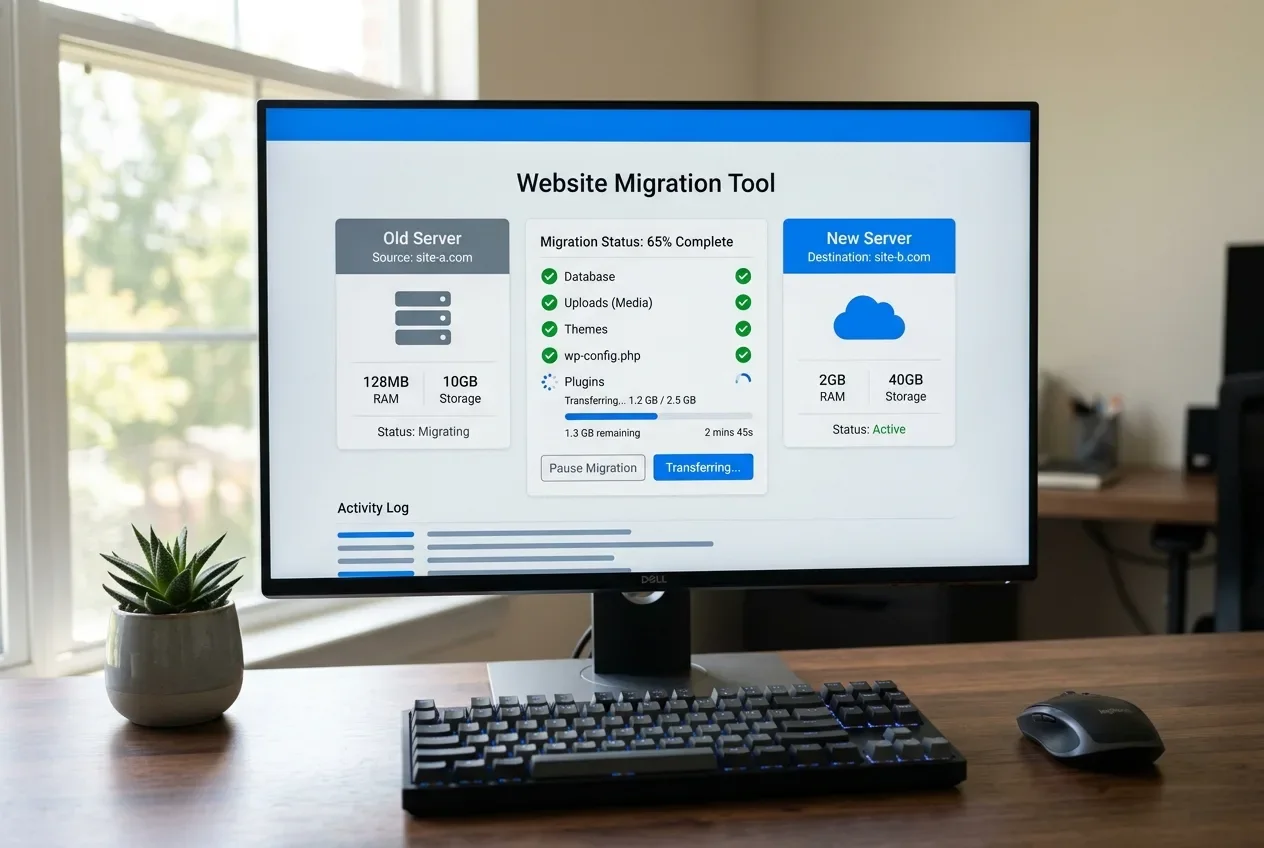
A complete WordPress migration is the database, the entire wp-content folder, a handful of root files (wp-config.php values and .htaccess), and a set of server-level things no backup captures at all — DNS, email, SSL, cron, PHP settings. A dedicated migration plugin handles most of the first three; a plain backup or a manual file copy usually misses something.
The things people find missing after a move are almost never the posts. They're the contact form settings, a custom database table, the redirects, the translation files, the must-use plugins. This is the full manifest to check your backup against, the specific gaps in the common tools, the wp-config.php values to carry over, and what you have to sort out separately at the server level.
The complete manifest
Item | Where it lives | A migration plugin? | UpdraftPlus (free)? |
|---|---|---|---|
Database — all tables | MySQL | Yes | Yes (with caveats below) |
Media library |
| Yes | Yes |
Plugins |
| Yes | Yes |
Themes (including your child theme) |
| Yes | Yes |
Must-use plugins |
| Yes | Yes |
Translation files |
| Yes | Yes |
Plugin data kept in uploads (form entries, cache, generated CSS) |
| Yes | Yes |
| site root | Values re-entered during install | No |
| site root | Usually | No |
Custom code or files outside | site root, elsewhere | Sometimes | No |
Two takeaways from that table. First, a backup plugin's free tier covers wp-content and the database but nothing outside wp-content — UpdraftPlus states this plainly (opens in a new tab): the free version backs up "all of the files in the wp_content directory... and the WordPress database," and wp-config.php or files outside wp-content need Premium. Second, a manual copy ("I'll just grab plugins, themes, and uploads") is the approach that misses mu-plugins and languages, because those are separate folders people forget exist.
Must-use plugins are especially easy to lose. They load automatically on every site (opens in a new tab), don't appear in the normal Plugins list (only a separate "Must-Use" section), and "cannot be disabled except by removing the plugin file." If a host or an agency dropped one in for caching, security, or a code snippet, the site depends on it and nothing in the admin will remind you it's there.
The database caveats
The database is where a migration quietly goes wrong.
Table prefix. If the site uses a non-standard $table_prefix (anything other than wp_), the new wp-config.php has to be set to match, or WordPress won't find its own tables — you'll get what looks like a fresh install or a database error. The wp-config.php reference (opens in a new tab) lists every constant that lives in that file. A migration plugin handles this automatically. A manual database import plus a hand-written wp-config.php is exactly where it's missed.
Tables that don't match the prefix. UpdraftPlus free backs up the tables belonging to your install. A second application sharing the same database, or tables added with an unusual name, need Premium or a manual mysqldump (opens in a new tab).
WooCommerce orders. If you run a store, the order data lives in its own set of tables (wp_wc_orders and three siblings), not in wp_posts. A migration tool with a narrow table list, or one that predates High-Performance Order Storage, can skip them — the restore looks complete but the orders are gone. See WooCommerce Orders Show a Count But the List Is Empty for how to spot and fix that specific case.
Large databases. A big export can time out or truncate without an error. If the database won't import on the new host, the packet-size fix covers the real cause.
The wp-config.php values you actually need
You rarely copy wp-config.php across verbatim, because the database credentials change on the new server. But these values have to make it over:
- Database name, user, password, host — new values for the new server
$table_prefix— must match the tables you imported- Authentication keys and salts — copy them from the old file to keep everyone logged in, or generate fresh ones from the WordPress.org secret-key service (opens in a new tab) and accept that every user gets logged out once
- Custom constants people forget:
WP_MEMORY_LIMIT,WP_MAX_MEMORY_LIMIT,DISABLE_WP_CRON(which needs a matching real cron job — see below),WP_CACHE,FS_METHOD,WP_HOMEandWP_SITEURLif they were hard-coded,WP_DEBUG - Multisite constants:
MULTISITE,SUBDOMAIN_INSTALL,DOMAIN_CURRENT_SITE,PATH_CURRENT_SITE,SITE_ID_CURRENT_SITE,BLOG_ID_CURRENT_SITE— all of these have to be updated for the new domain WPMU_PLUGIN_DIRif the must-use plugins folder was relocated from the default
The safe habit: open the old wp-config.php, read it top to bottom, and account for every define() line that isn't a database credential or a salt.
What's not in any backup
The move isn't finished when the files land. None of this is inside a backup file:
- DNS. The A record or nameservers still point at the old host until you change them, and the change takes time to propagate. Plan the cutover around it.
- Email. MX records and any mailboxes on the old host — a site backup contains none of it. If email runs on the same server as the site, that's a separate migration.
- SSL certificate. Reissue it on the new host. Let's Encrypt through the hosting panel is usually automatic once DNS points at the new server.
- Server cron jobs. Real cron entries live in the server's crontab, not in WordPress. If you disabled WP-Cron with
DISABLE_WP_CRON, the replacement cron job has to be recreated on the new host — see the WP-Cron article. - PHP version and
php.inisettings. Match them on the new host. A site that worked on PHP 8.1 with a 512M memory limit can break on PHP 8.3 with 128M. - Server-level redirects and rules. Nginx
locationblocks and Apache vhost directives are not.htaccessand are not backed up. If the old host set up redirects or caching at that level, you re-create them by hand.
Before you tear down the old site
- Restore the backup somewhere first — a staging site, or free on your own computer with Local — and click through it: the front page, wp-admin, a few posts, your forms, and for a store, some orders. A backup you haven't restored is an assumption.
- Keep the old host live for a week or two after the cutover. It's the cheapest insurance in a migration, and it means a mistake is a rollback instead of a disaster.
- Run a search-replace for the old domain if it changed (the full walkthrough is here), then re-save your permalink settings to rebuild the rewrite rules.
Related fixes
- The Best WordPress Backup Plugins (And Common Fixes) — which tool to use, and what determines whether the restore actually works.
- WooCommerce Orders Show a Count But the List Is Empty — the most common concrete case of a migration backup missing tables.
- All-in-One WP Migration Didn't Replace All Your URLs — the post-move URL cleanup, including serialized data.
Packet Bigger Than max_allowed_packeton Backup Import — if the database won't import on the new host.- Restore a Backup to Local by Flywheel First — confirm the backup is complete before you rely on it.
- Your WordPress Backups Might Not Be Running — set up the real server cron the new host needs.
FAQ
Do I need to copy wp-config.php when I move hosts?
Not verbatim — the database credentials change on the new server. But you need to carry over the table prefix, any custom define() constants (memory limits, cache flags, multisite settings), and optionally the authentication salts if you want to keep users logged in. A migration plugin re-enters these during its install step; a manual move means reading the old file line by line.
Does a normal backup plugin back up enough to move my whole site?
It backs up the database and the entire wp-content folder, which is most of a WordPress site. What UpdraftPlus free specifically does not back up is wp-config.php, .htaccess, and anything outside wp-content. For a host move you either add those by hand or use a migration-specific tool that packages them for you.
Why are my WooCommerce orders or form entries missing after the migration?
WooCommerce order data lives in its own database tables, not in wp_posts, and many form plugins store entries in wp-content/uploads rather than the database. A backup or migration tool with a narrow scope can skip either one, so the restore looks complete while specific data is gone. The linked WooCommerce article covers how to check and recover the order tables.
Every guide explains the symptom, likely causes, the safest order of checks and how to confirm the fix. How we check our guides.