A PHP version switch doesn't make WordPress slower on its own. What it does is move your site to a different PHP install, and on most hosting panels each version has its own configuration file, its own extensions, and its own OPcache. The switch can quietly land you on one with OPcache turned off, without the cache extension your object cache depended on, or with old plugin code now throwing a deprecation notice on every request. Your front end usually stays fast because it's served from a page cache. The admin, which is never cached, is where the difference shows.
Here's how to tell which of those it is, and fix it without rolling PHP back to a version that's no longer supported.
First, rule out a cold cache
Right after any PHP switch or server restart, OPcache and PHP's realpath cache are empty. The first requests have to recompile every script and re-resolve every file path, and they're genuinely slower for a minute or two.
Wait 5 to 10 minutes, click around the admin normally to warm things up, then retest. If the speed comes back on its own, that was it. If it's still slow after that, it's a configuration issue — keep going.
Quick diagnosis
What you notice | Most likely cause | Section |
|---|---|---|
Every admin page feels heavy, front end is fine | OPcache off or undersized on the new version | Check OPcache |
Admin does a lot of database work; a cache plugin says "Not connected" | The object-cache extension didn't load on the new version | Re-add the extension |
| A plugin flooding PHP 8 deprecation notices | Deprecation-notice flood |
Still slow after all the above, on PHP 8.0–8.3 | JIT running with no benefit | Check JIT |
Uploads or imports fail, editor is sluggish |
| Memory and realpath cache |
Check OPcache on the new PHP version
OPcache stores compiled PHP bytecode in memory so PHP doesn't recompile every script on every request. wp-admin loads a lot of PHP, so without OPcache it feels heavy on every click.
The catch after a version switch: OPcache settings don't travel with your site. The new PHP version has its own. PHP's defaults (opens in a new tab) are opcache.enable=1 and opcache.memory_consumption=128, but a panel build can override either, and a version you haven't used before might have OPcache uninstalled entirely.
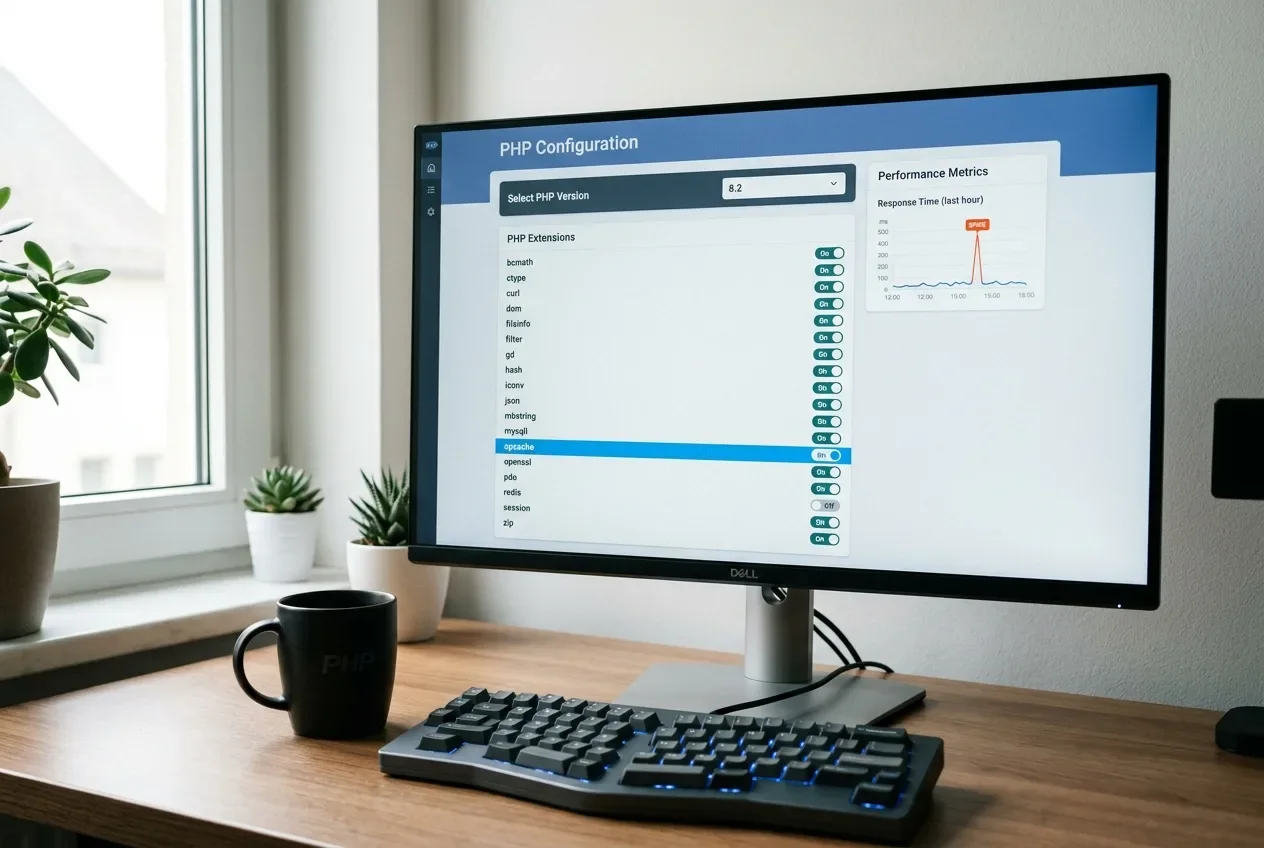
On aaPanel: go to Software → PHP [your version] → Install extensions and confirm OPcache is installed, then open the configuration and check opcache.enable=1 and opcache.memory_consumption. 128 is fine for a small site; use 256 for a large plugin stack or WooCommerce.
Confirm it's actually running, not just configured. A one-line script with opcache_get_status(), or your panel's OPcache status view, should show it enabled with a hit rate that climbs as you use the site. This is the same check as Step 3 of our LiteSpeed TTFB guide — if your front end is slow too, start there instead.
Re-add the object-cache extension the switch dropped
If your site had a persistent object cache — Redis Object Cache, a Memcached plugin, an APCu-based one — it depends on a PHP extension, and extensions are installed per version.
After a switch, the new PHP version often doesn't have redis, memcached, or apcu loaded. When that happens, WordPress falls back to its default: the object cache is non-persistent (opens in a new tab), meaning "data stored in the cache resides in memory only and only for the duration of the request." Every admin page then rebuilds every cached value from the database, from scratch, every time.
The tell: your object-cache plugin's own status screen shows "Not connected" or "Disabled" — a screen nobody checks until something's wrong. Query Monitor will also show a high query count on every admin page.
To fix it on aaPanel: Software → PHP [your version] → Install extensions, add the one you need, restart PHP-FPM, then re-open the plugin's status screen and confirm it says "Connected."
If you never ran a persistent object cache, skip this step — WordPress's per-request cache is the normal baseline, and the pillar guide's caching section explains the difference.
Check for a PHP 8 deprecation-notice flood
Code that ran silently on PHP 7.4 can throw an E_DEPRECATED notice on PHP 8. The creation of dynamic properties was deprecated in PHP 8.2 (opens in a new tab), passing null to internal function parameters was deprecated in 8.1, and there are more.
One old plugin or theme doing this on every admin request adds error-handler overhead on every page load. If WP_DEBUG_LOG is enabled, it's worse — that's a disk write for every notice.
Check wp-content/debug.log. If it's large and still growing, something is flooding it. Query Monitor's PHP Errors panel will point at the file and plugin responsible. The fix is to update or replace that plugin or theme. And if WP_DEBUG or WP_DEBUG_LOG was switched on during earlier troubleshooting and never switched off, set define('WP_DEBUG', false); in wp-config.php — a production site shouldn't be logging on every request.
If you're on PHP 8.0 to 8.3, check JIT
opcache.jit defaulted to "tracing" from PHP 8.0 through 8.3. It only became disable by default in PHP 8.4 (opens in a new tab).
JIT is built for compute-heavy code. A typical WordPress admin workload is queries and I/O, not number crunching, so JIT rarely helps there and in some setups adds a little overhead. If the admin is still slow after the checks above, set opcache.jit=disable (or opcache.jit_buffer_size=0) in the PHP configuration, restart PHP-FPM, and compare. It's low-risk and fully reversible.
Memory and realpath cache
A version switch can also reset memory_limit and realpath_cache_size to conservative defaults.
Set memory_limit to at least 256M — WooCommerce and page builders want more. On a site with a large number of files, set realpath_cache_size to 4096k and realpath_cache_ttl to 600 so PHP isn't re-resolving the same paths constantly. On aaPanel these are on the same PHP version configuration screen.
Verify
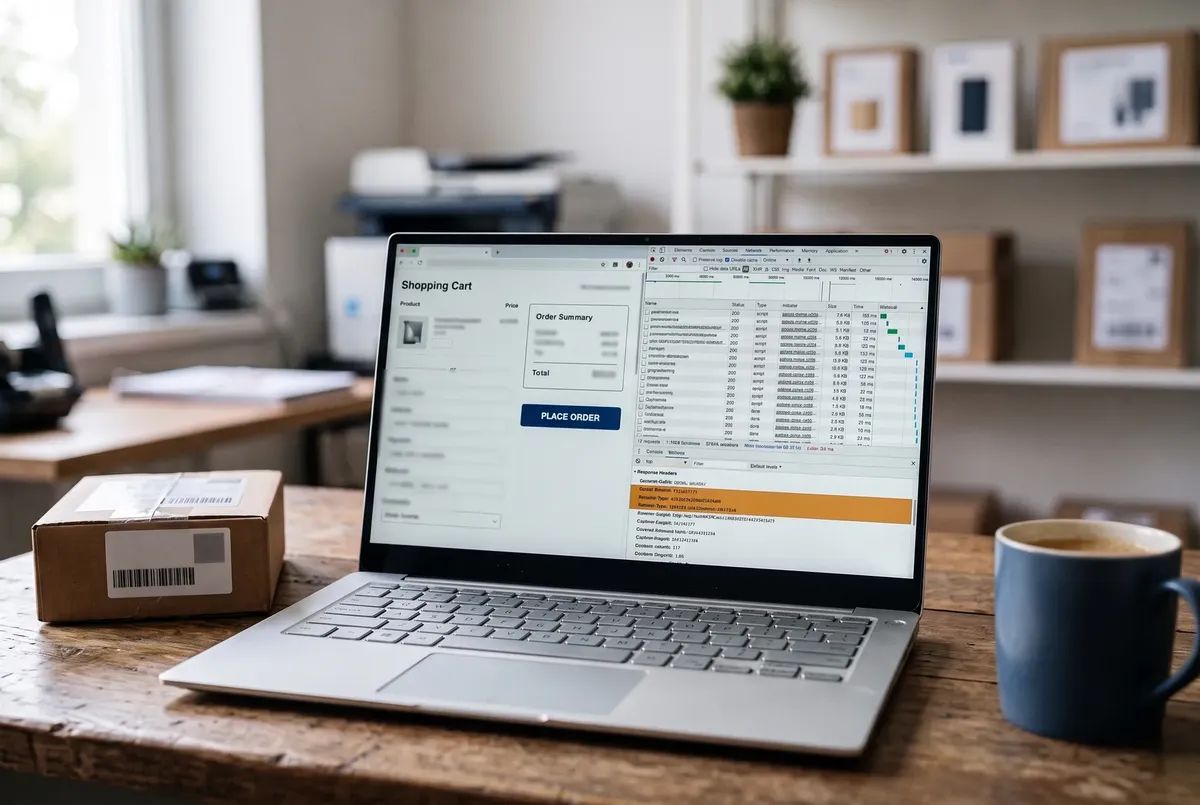
- Admin page load time is back to roughly what it was before the switch — check the Network tab in your browser's dev tools, or a timing plugin
opcache_get_status()showsopcache_enabled: trueand a hit rate climbing toward the high 90s as you navigate- Your object-cache plugin's status screen shows "Connected"
wp-content/debug.logisn't growing while you use the site
Rolling back
Switching the PHP version back in your panel is instant and changes no data, so it's a safe way to confirm the slowdown is version-related before you spend time on the configuration. But the goal is the current version working properly, not staying on one that's unsupported — roll back only to isolate the cause, then move forward with the fixes above. Any php.ini or wp-config.php line you edited, you kept the original of, so revert that specific line if a change made things worse.
Related fixes
- WordPress Speed Optimization: The Complete Guide — the full picture of caching layers and where the object cache fits.
- High TTFB on WordPress with aaPanel and LiteSpeed Cache — if the front end is slow too, not just the admin.
- The Complete Guide to Running WordPress on aaPanel — where the PHP version, extensions, and limits live in the panel.
- Fix a WordPress Critical Error After Upgrading to PHP 8.1 — if the upgrade broke the site entirely instead of slowing it.
- WordPress White Screen After Switching PHP Version in aaPanel — if you got a blank screen instead of a slow one.
FAQ
Should I just roll PHP back to the old version?
You can temporarily, to confirm the version switch is the cause. But the older version is likely unsupported and receives no security fixes, so it's not where you want to stay. The checks above get the speed back on the current version, which is the right place to be — the slowdown is almost always a configuration regression, not the PHP engine itself.
Why is only my admin slow and not the front end?
The front end is served from a page cache, so a visitor request barely touches PHP or the database. wp-admin is never cached — every click runs PHP from the start and hits the database — so any per-request overhead from a configuration regression shows up in the admin first and most clearly.
How do I know if OPcache is actually working?
Run a one-line script containing opcache_get_status(), or open your hosting panel's OPcache view. You want it enabled, with a hit rate that rises toward the high 90s as you use the site. A hit rate stuck low, or a status of "disabled," is the problem you're looking for.
Every guide explains the symptom, likely causes, the safest order of checks and how to confirm the fix. How we check our guides.