If you only have twenty minutes: install a caching plugin that covers page cache, browser cache, and (if your host supports it) object cache in one place — WP Rocket, LiteSpeed Cache, or W3 Total Cache all work, but only one setting actually matters at first: enable page caching and leave the rest on defaults until you've measured a before/after. Then check whether your images are actually being served in a modern format (AVIF or WebP) with real thumbnails, since a broken image pipeline silently undoes most caching wins. Everything past that — PHP-FPM tuning, object cache backends, third-party script deferral — matters, but in that order of impact, not before it.
Why speed optimization keeps failing on WordPress specifically
WordPress sites slow down for one of three structural reasons, and most troubleshooting fails because it treats all three as the same problem:
- No caching, or two caching layers fighting each other. A dynamic PHP request that should be served from a static cached copy instead re-runs the full WordPress bootstrap — database queries, plugin hooks, theme rendering — on every single visit. Just as common on managed/panel hosting: a server-level cache (LiteSpeed Cache, Nginx FastCGI cache) and a plugin-level cache both trying to own the same request, producing inconsistent pages or no caching benefit at all.
- Unoptimized images. Large, uncompressed, or legacy-format (JPEG/PNG-only) images are among the most common causes of a slow Largest Contentful Paint (LCP) on WordPress sites, because LCP measures when the largest image or text block in the viewport renders (opens in a new tab) — which on image-heavy pages is often an image.
- Server-level bottlenecks that no plugin can fix. PHP-FPM pool limits, insufficient worker processes, or a database under-provisioned for the site's traffic show up as high Time to First Byte (TTFB) — the page hasn't even started rendering yet, which no amount of frontend caching fixes.
Diagnosing which of these three is actually happening — rather than installing another plugin and hoping — is what separates a real fix from a temporary placebo. If you suspect a plugin, find which one before you deactivate anything.
Caching layers, and what each one actually does
- Page cache stores a fully-rendered HTML copy of a page so WordPress never has to re-run PHP for repeat visitors. This is the single highest-impact change for almost every site, and the first thing to enable.
- Browser cache tells a visitor's browser to keep static assets (CSS, JS, images, fonts) locally so a second page view on your site doesn't re-download them. Controlled via cache-control headers, usually set by your caching plugin or server config.
- Object cache (Redis or Memcached) caches the results of expensive database queries in memory. This matters most on sites with heavy dynamic content — WooCommerce stores, membership sites, anything querying the database per-request beyond what page cache alone can serve. Skip this until page cache is solid; it's a second-order optimization, not a first one.
Which cache plugin should you actually use
- LiteSpeed Cache — the clear choice if your host runs LiteSpeed or OpenLiteSpeed (common on aaPanel), since it integrates directly with the server's own cache layer rather than duplicating it in PHP. Free, and includes image optimization and CSS/JS minification built in.
- WP Rocket — the most consistently reliable premium option on Apache/Nginx hosting where there's no server-level cache to hook into. Simpler settings than most free alternatives, worth the cost if you're not on LiteSpeed.
- W3 Total Cache — the most configurable free option, but that configurability is also where most self-inflicted slowdowns come from; only reach for it if you specifically need object cache support and aren't on a LiteSpeed stack.
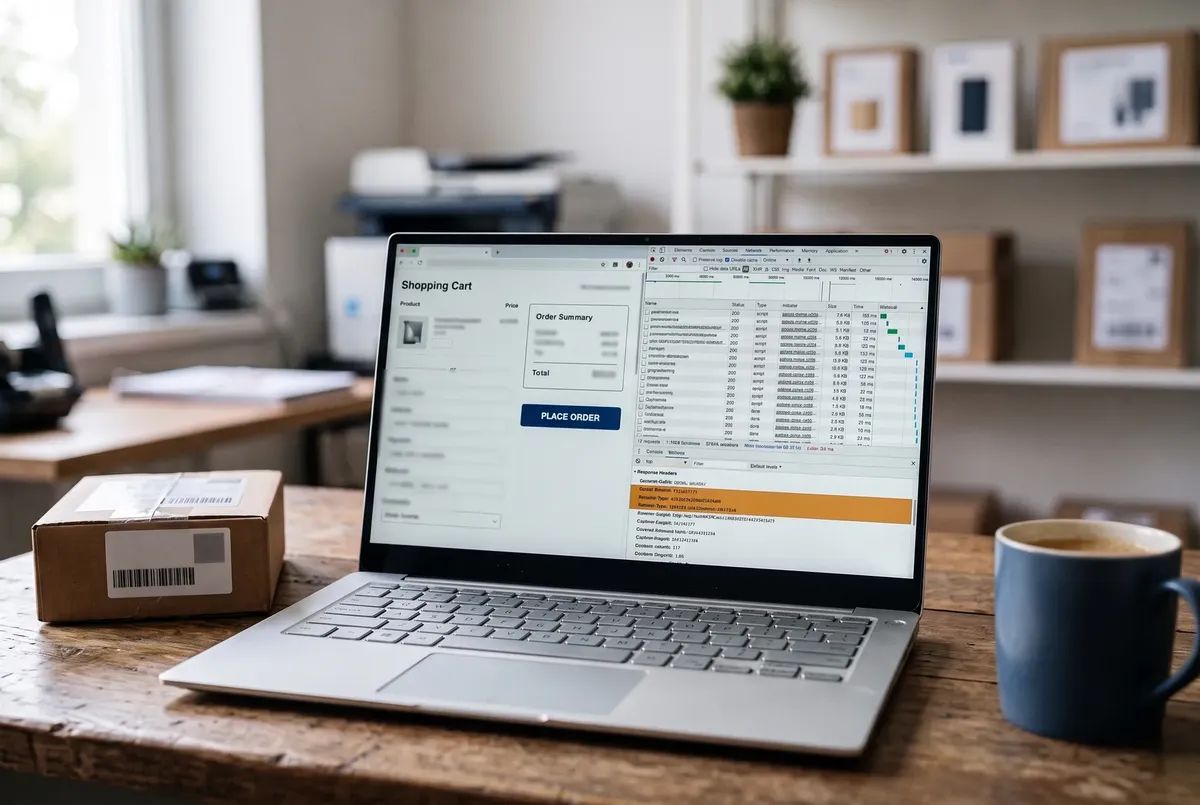
Running two of these at once, or a cache plugin alongside a separate server-level cache it doesn't know about, leaves two layers managing the same pages without coordinating, which can make a cache plugin look like it changed nothing. Confirm which layer(s) your host already provides before adding a plugin on top. If caching broke a WooCommerce cart or checkout instead, see Cache Plugin Broke Your WooCommerce Checkout?
Images: the highest-impact fix most sites skip
Modern image formats (AVIF, WebP) produce meaningfully smaller files than JPEG or PNG at equivalent visual quality, which directly improves LCP — often the single largest Core Web Vitals gain available on a content-heavy WordPress site. Two things routinely break this:
- The server's PHP image library doesn't support the format. WordPress relies on GD or Imagick to generate thumbnail sizes on upload, and AVIF support in WordPress depends on that library supporting it (opens in a new tab) (Tools → Site Health → Info → Media Handling shows what yours supports); if it lacks AVIF/WebP support, uploads succeed but no responsive image sizes get created, silently breaking your image pipeline.
- A caching or optimization plugin's image conversion setting isn't actually enabled, so the original JPEG/PNG keeps serving even though the plugin claims to handle format conversion.
Check both before assuming your image setup is fine just because a plugin is installed.
Server-level tuning — the part caching plugins can't touch
If TTFB (Time to First Byte) is high even with page caching enabled and images optimized, the bottleneck has moved to the server itself:
- PHP-FPM pool settings (
pm.max_children,pm.max_requests(opens in a new tab)) that are too conservative for your traffic cause requests to queue behind each other instead of running in parallel —pm.max_childrenis the limit on simultaneous requests PHP will serve, so this shows up as slow response times that get worse under any concurrent load, not just on the heaviest pages. - Two caching layers at the server level (e.g., LiteSpeed Cache plugin and OpenLiteSpeed's own cache both active with conflicting rules) can produce a cache miss on every request despite everything appearing correctly configured in the plugin's dashboard.
- Third-party scripts — chat widgets, analytics, ad tech — loaded synchronously on every page load block the main thread regardless of how well your server and caching are tuned, and long tasks on the main thread can delay the response to user interactions (opens in a new tab), which is why INP (Interaction to Next Paint) problems often persist even after every server-side fix is in place.
Common WordPress speed problems (and where to fix them)
- AVIF Images Uploaded But No Thumbnails? Here's Why (GD vs. Imagick) — the exact server-library check and fix for the image pipeline issue above.
- Your Live Chat Widget Is Killing Your INP Score — how to delay third-party widget scripts until real user interaction, without losing the chat feature.
- Why WordPress on aaPanel Has High TTFB (Even With LiteSpeed Cache) — the PHP-FPM and dual-cache-layer diagnosis for server-level slowness.
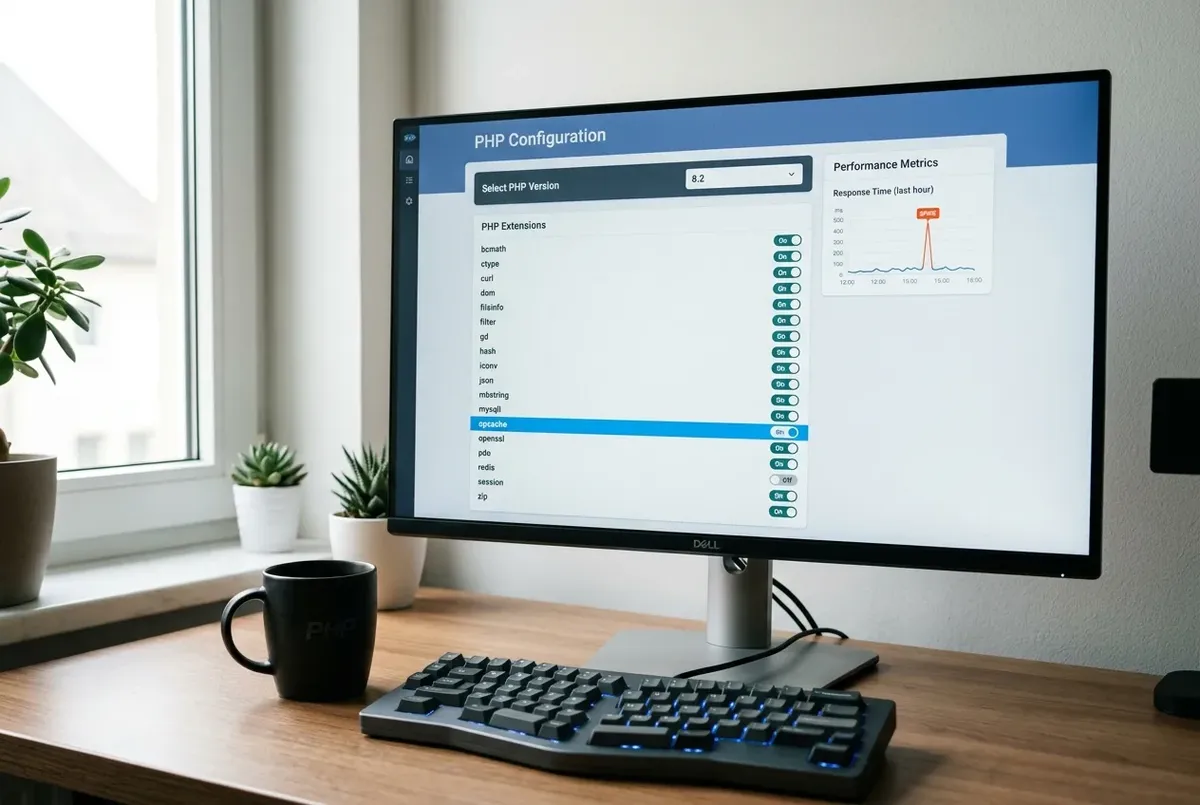
- WordPress Admin Got Slower After a PHP Upgrade? — OPcache, object-cache extensions, and deprecation notices that don't carry across a PHP version switch.
FAQ
What's the single fastest way to improve WordPress speed?
Enable page caching if it isn't already on — it's the one change that helps nearly every WordPress site regardless of hosting, theme, or plugin stack, because it eliminates the full PHP bootstrap on repeat page views. Everything else in this guide compounds on top of that, but page cache alone is usually the largest single jump you'll see.
Do I need a CDN in addition to a caching plugin?
A CDN helps most for sites with visitors spread across different regions, or a lot of static asset weight (images, video, large JS bundles) — it moves that delivery closer to each visitor. If your audience is concentrated in one region and your host has decent infrastructure there, a solid page cache setup will get you most of the way without one. Add a CDN once caching and images are already handled, not as a first move.
Why did my site get slower after installing a caching plugin?
The most common cause is two caching layers conflicting — a plugin-level cache running alongside a server-level cache (LiteSpeed's own cache, Nginx FastCGI cache) that it doesn't coordinate with, producing stale or inconsistent pages that force extra revalidation. Check what caching your host already provides at the server level before adding a plugin on top of it.
Every guide explains the symptom, likely causes, the safest order of checks and how to confirm the fix. How we check our guides.