If your WordPress site on aaPanel still shows a slow Time To First Byte (TTFB) in PageSpeed Insights or GTmetrix even though LiteSpeed Cache is installed and "working," check three things before blaming the plugin: the PHP-FPM pool behind it may be sized for a much smaller site, a second caching plugin may be competing for the same job, or the plugin may not be caching pages at all — LiteSpeed Cache's page caching needs a LiteSpeed server (opens in a new tab) (OpenLiteSpeed or LiteSpeed Enterprise) or QUIC.cloud, so on an Nginx or Apache stack only its optimization features work. All of these can be checked in aaPanel without touching your theme or plugins.
Symptoms
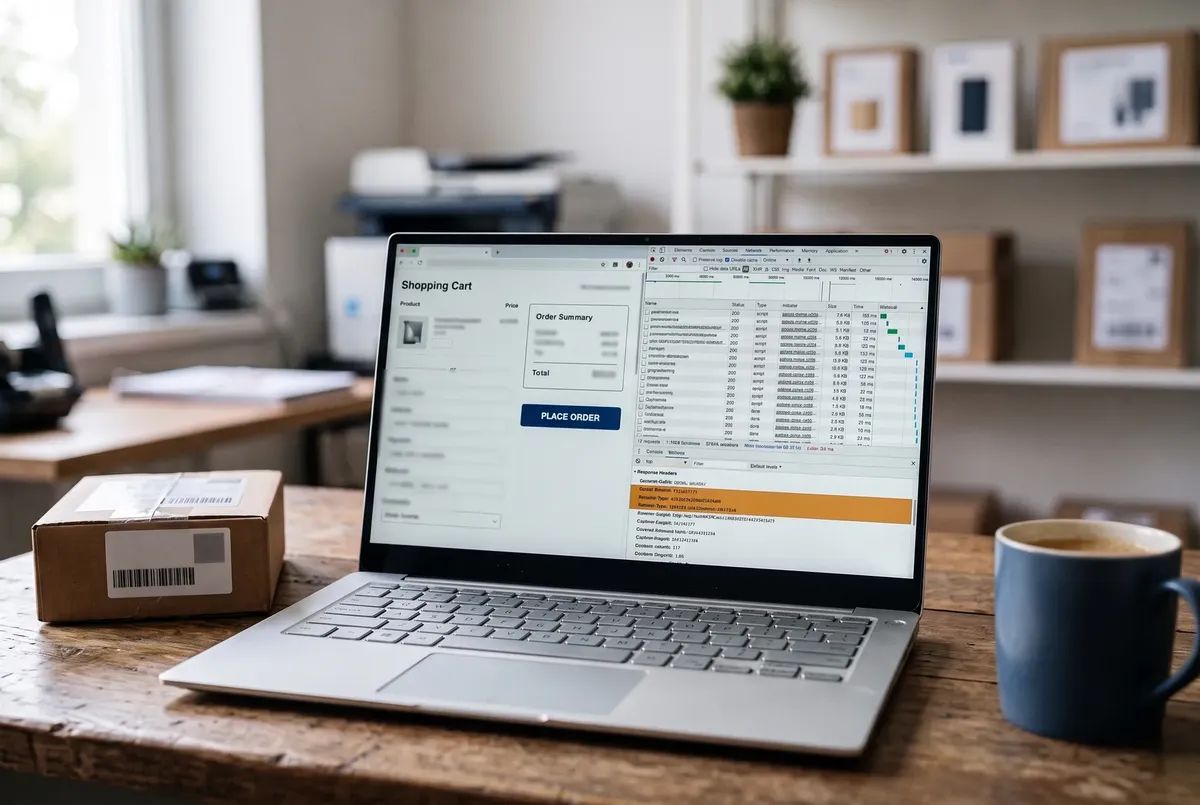
- PageSpeed Insights or GTmetrix shows a slow TTFB even on a cached page (web.dev suggests aiming for 0.8 seconds or less (opens in a new tab)).
- The homepage loads fast on repeat visits but the first byte still takes noticeably long according to waterfall tools.
- Server CPU and RAM look fine in aaPanel's monitor graphs, yet response times spike under any concurrent traffic (a handful of simultaneous visitors, a crawler, or a small traffic bump).
- You have both LiteSpeed Cache (or another caching plugin) active in WordPress and aaPanel's LiteSpeed server-level cache enabled at the same time.
- TTFB is inconsistent — fast on some requests, slow on others, with no obvious pattern.
Likely causes, in order of how often they actually happen
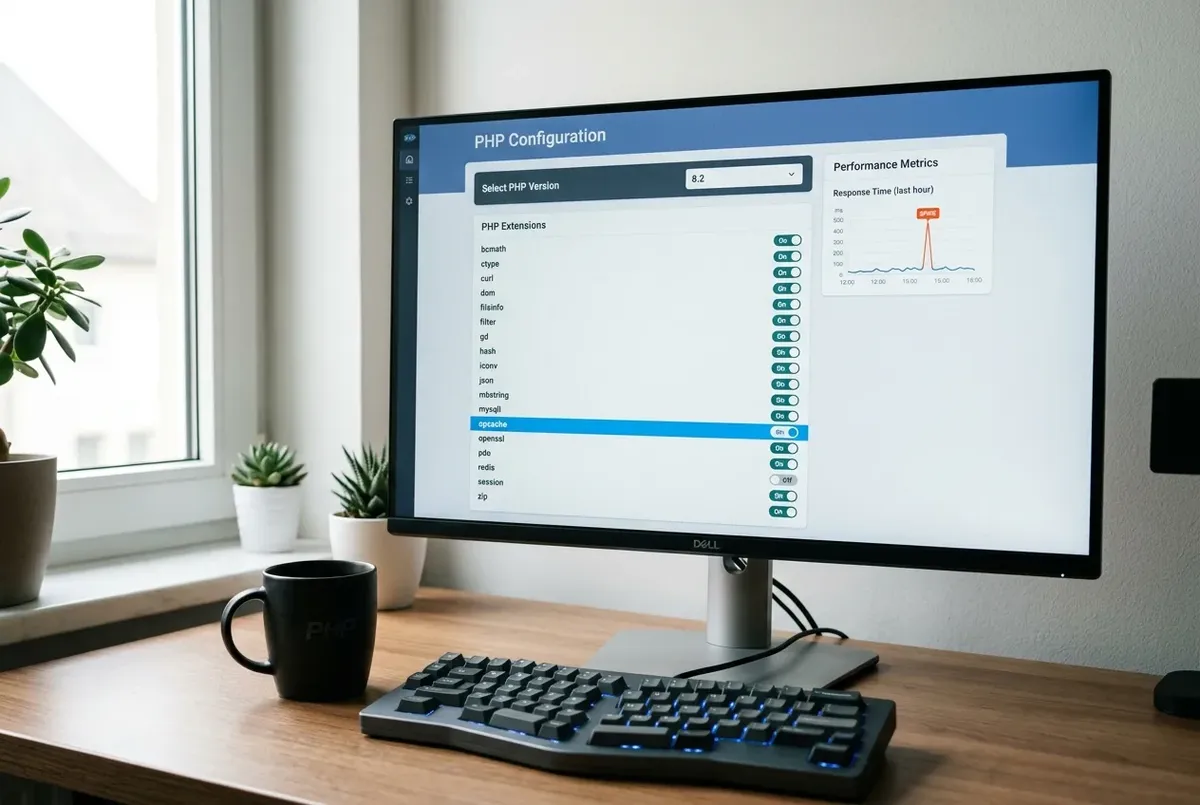
- PHP-FPM pool settings are too conservative for the site's real traffic. aaPanel's default PHP-FPM pool (set under the PHP version's configuration) often ships with a low
pm.max_childrenvalue intended for shared or low-traffic setups. When concurrent requests exceed that limit, PHP-FPM queues requests instead of processing them immediately, and that queueing shows up directly as TTFB. - Two caching layers are both trying to manage the same page cache. Running aaPanel's LiteSpeed server-level cache and a WordPress-level caching plugin (LiteSpeed Cache plugin, WP Rocket, W3 Total Cache, etc.) at the same time can cause cache misses, double-processing, or one layer serving stale rules while the other tries to regenerate — all of which add latency before the first byte, even though each layer individually "works."
- The PHP OPcache isn't enabled or is undersized, so PHP has to recompile scripts on every request instead of serving from a compiled cache, adding measurable time before WordPress even starts building the page.
- A slow database query or bloated wp_options autoload data is delaying page generation on cache-miss requests — less common as a root cause, but worth checking once the two above are ruled out.
Fix it: lowest-risk steps first
Step 1 — Confirm caching isn't being duplicated
First check which web server the site actually runs on — aaPanel shows the installed web server (Nginx, Apache or OpenLiteSpeed) on its dashboard and in the App Store. If it's Nginx or Apache, the LiteSpeed Cache plugin can't cache pages there (opens in a new tab); use a page cache that works with your server (a plugin such as WP Super Cache, or an Nginx FastCGI cache) and keep LiteSpeed Cache only for its optimization features, or not at all. If it's OpenLiteSpeed, check whether LSCache is enabled for the site, then check your WordPress admin for other caching plugins under Plugins.
- If both are active, pick one layer, not both. The simpler and generally more effective setup for most sites is: enable aaPanel/OpenLiteSpeed's server-level cache and use the free LiteSpeed Cache WordPress plugin specifically (it's designed to talk to the server-level cache rather than compete with it), and deactivate any other separate caching plugin (WP Rocket, W3 Total Cache, WP Super Cache, etc.) that also tries to generate a full-page cache.
- If you'd rather manage caching entirely from WordPress, disable the server-level LSCache for that site in aaPanel and keep your WordPress plugin as the only cache layer.
Don't run a non-LiteSpeed-aware plugin (like WP Rocket) alongside aaPanel's server-level LiteSpeed cache — they aren't designed to coordinate and can produce inconsistent or negated caching. On a WooCommerce store, also confirm the cart and checkout stay out of every cache layer: how to find which layer cached them.
Step 2 — Check and raise PHP-FPM pool limits
In aaPanel, go to Website → your site → PHP config (or Software → PHP version → Configuration file / pool settings, depending on your aaPanel version). Locate the pool's process manager settings, typically:
pm— should bedynamicfor most single-site setups, orondemandon low-RAM servers.pm.max_children— the ceiling on concurrent PHP processes (PHP-FPM configuration reference (opens in a new tab)). If it's low for your traffic, raise it based on available RAM: divide the RAM you can spare for PHP by the memory one PHP process actually uses on your site (visible in aaPanel's process monitor) to estimate a safe ceiling.pm.start_servers,pm.min_spare_servers,pm.max_spare_servers— these should scale proportionally withpm.max_children(aaPanel usually adjusts them together when you edit the pool config through its interface).
Save the change and restart PHP-FPM for that version from aaPanel's Software page. Increase gradually and monitor RAM usage in aaPanel's server monitor afterward — setting pm.max_children too high on a low-RAM VPS can cause the server to run out of memory under load, which is worse than the original TTFB problem.
Step 3 — Confirm OPcache is enabled and sized adequately
In aaPanel, under the PHP version's settings, check that OPcache is enabled and that opcache.memory_consumption is large enough for your site's codebase. PHP's default is 128 MB (opens in a new tab), a reasonable starting point for a typical WordPress install with a handful of plugins; increase it if you run a large plugin stack like WooCommerce plus many add-ons. An undersized OPcache keeps evicting and recompiling scripts, which adds latency to every request, cached page or not.
Step 4 — Only if TTFB is still high: check for a slow query or bloated autoload data
Use a plugin like Query Monitor temporarily (deactivate it once done, since it adds its own overhead) to check for slow database queries on a cache-miss request, and check whether wp_options has an unusually large autoloaded dataset — a common cause is a plugin that stores large serialized data with autoload set to yes. This is a less common root cause than pool sizing or cache duplication, so it's worth checking last. To see which plugin those queries or options belong to, follow how to find the plugin that's slowing WordPress down.
Verify the fix
- Re-run PageSpeed Insights or GTmetrix and confirm TTFB has dropped (web.dev's guideline is 0.8 seconds or less (opens in a new tab); a well-cached page is usually well under that).
- In aaPanel's process/server monitor, confirm PHP-FPM isn't hitting its
pm.max_childrenceiling under normal traffic — when it does, PHP-FPM writes a "server reached pm.max_children setting" warning to its error log. - Load the site from a private browser window on a fresh (uncached) page load and confirm response time is stable across several reloads, not spiking intermittently.
If you need to roll back
If raising pm.max_children causes memory pressure or server instability, lower the value back toward its original setting in the same PHP config screen in aaPanel and restart PHP-FPM. If disabling one of the two caching layers in Step 1 causes unexpected behavior (missing cache headers, plugin settings that assumed the other layer was active), simply re-enable the layer you turned off and revisit which single layer to standardize on later — this change is fully reversible from the same screens.
Related fixes
- WordPress Speed Optimization: The Complete Guide — For the full guide to caching, images, and server-level performance tuning.
- aaPanel Won't Renew Your Let's Encrypt SSL — Another common aaPanel configuration issue.
- Fix a WordPress 500 Internal Server Error on aaPanel — If you're also seeing server errors alongside the slow response times.
- WordPress Admin Got Slower After a PHP Upgrade — If it's the admin specifically that's slow, and it started right after a PHP version switch.
FAQ
Is LiteSpeed Cache (the WordPress plugin) the same as aaPanel's server-level LiteSpeed cache?
No, they're related but distinct. aaPanel's server-level cache operates at the web server layer (OpenLiteSpeed or LiteSpeed Enterprise), while the LiteSpeed Cache WordPress plugin communicates with that cache to manage rules, exclusions and purging from within WordPress. Using them together is the intended setup on a LiteSpeed server; on Nginx or Apache the plugin's page caching doesn't work at all (opens in a new tab), and adding another caching plugin on top of either setup is where problems start.
How do I know if PHP-FPM is actually the bottleneck rather than something else?
Check the PHP-FPM error log for that PHP version: a "server reached pm.max_children setting" warning confirms the pool is undersized for current traffic. If you don't see it, focus on the caching and OPcache checks instead.
Will raising pm.max_children fix TTFB immediately?
It only helps if pool exhaustion was actually the cause. On a VPS with limited RAM, raising it too far without available memory can cause PHP-FPM to crash or the server to swap, which makes TTFB worse. Increase in small increments and watch the server's RAM usage in aaPanel after each change.
Every guide explains the symptom, likely causes, the safest order of checks and how to confirm the fix. How we check our guides.