Yes — but only if the backup you'd restore genuinely predates the hack, and only if you also fix whatever let the attacker in the first time. Restoring an infected backup just brings the malware back with it. Restoring a clean one without patching the vulnerability that caused the hack usually means getting hacked again within days. Below: how to tell which situation you're actually in, and what to do either way.
The one thing that decides everything: does your backup actually predate the hack?
An infected backup restores the infection along with everything else — that's the whole risk in one sentence. It's tempting to assume "my most recent backup" is safe, but automated backup schedules run on their own timeline, not the attacker's. If your last scheduled backup ran after the compromise happened, it already has the malware in it.
Before doing anything else, you need at least a rough answer to one question: when did this actually start?
Figuring out when the compromise actually happened
- Document what you're seeing and when you first noticed it, including your timezone. This matches the first documented step in WordPress.org's own official guidance for a hacked site (opens in a new tab) — you're building a timeline, not just fixing a symptom.
- Check Google Search Console's Security Issues report, if the site is registered there. Google often flags a detection date, which gives you a hard boundary: the site was compromised at or before that point.
- Look for spam posts, pages, or unfamiliar content, and note when they were published. This is one of the more reliable timeline markers, since spam content is usually created shortly after an attacker gains access, per Sucuri's official cleanup guide (opens in a new tab).
- Don't rely on file modification timestamps alone. They're a common first instinct, but attackers can and do alter them — treat file dates as a weak signal, not proof.
Once you have a rough window, check it against your backup history. A backup dated clearly before that window is your candidate for a safe restore. If your only backups fall inside or after the window, skip to the section below on what to do without a clean one.
If you have a clean, pre-hack backup: restore, then harden
Restoring alone isn't the finish line — it's step one of a two-part fix. Skipping the second part is the most common reason sites get hacked again almost immediately.
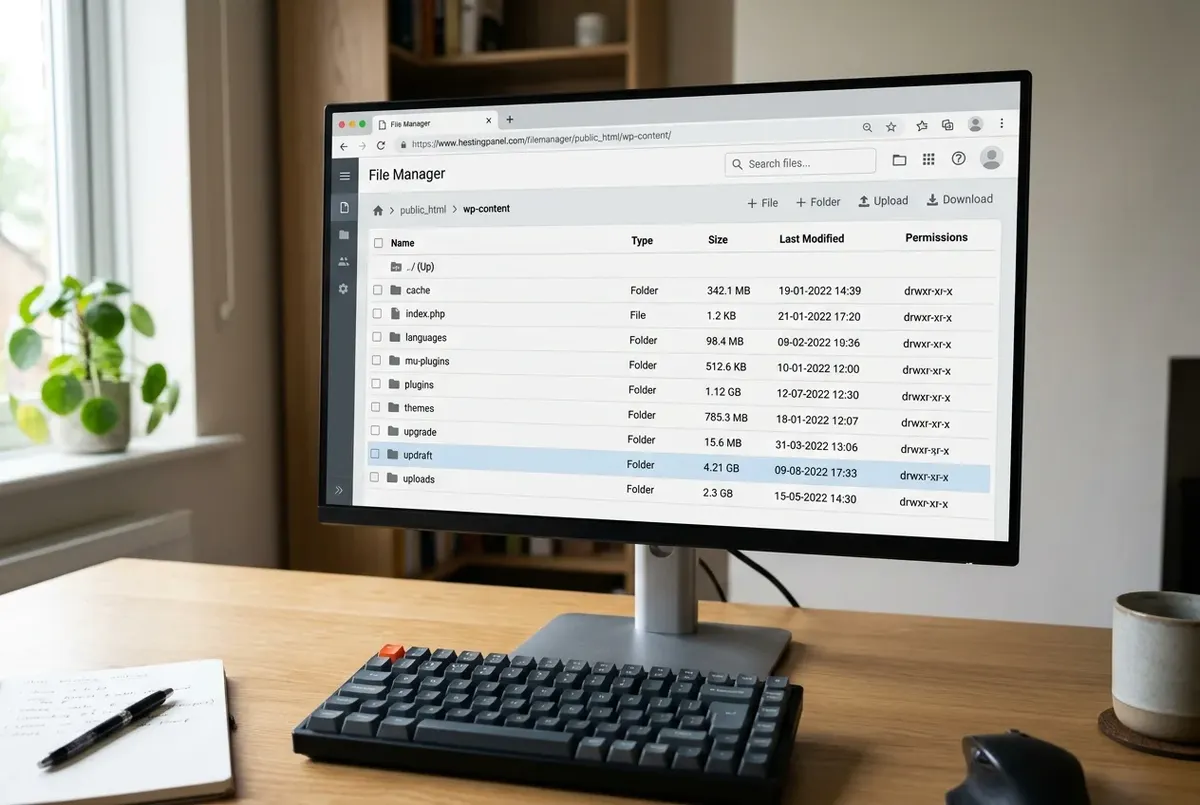
- Take one more snapshot first, even though it's infected. WordPress.org's own guidance recommends this explicitly — if anything goes wrong during cleanup, you'll want that reference point.
- Restore the pre-hack backup.
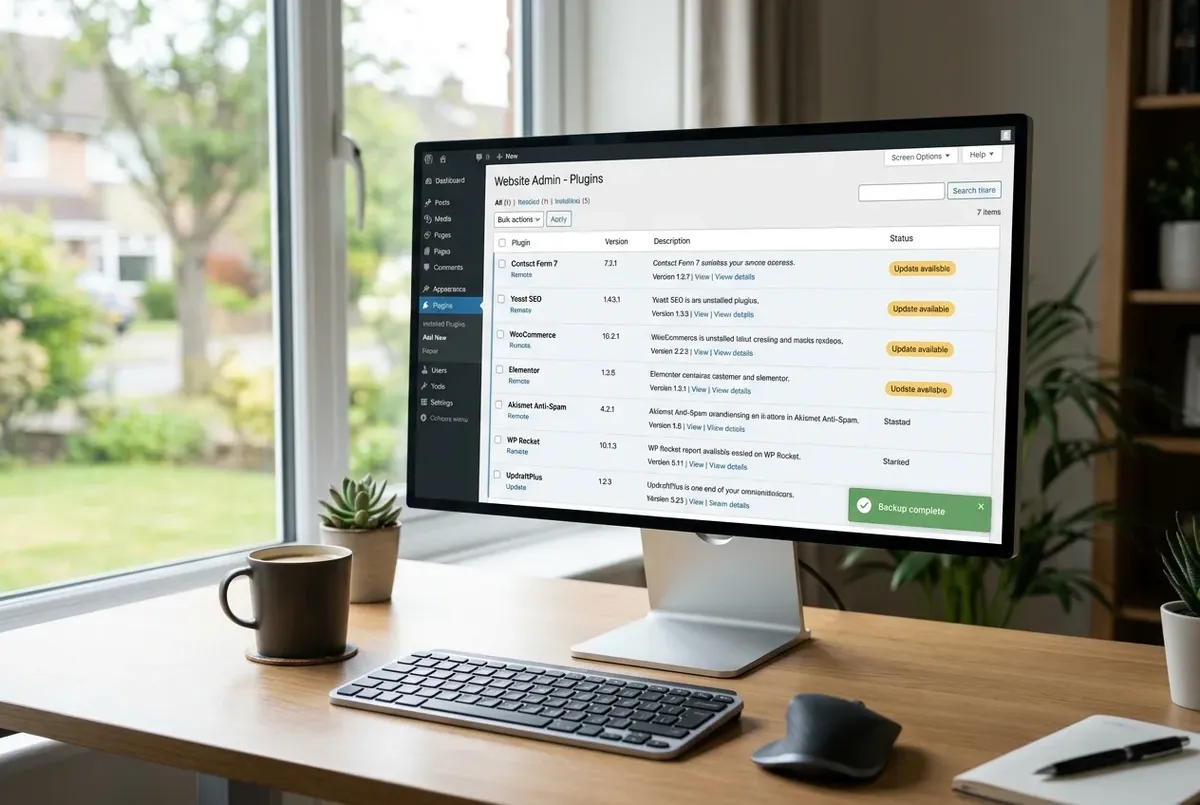
- Update everything before the site goes back online, if you can — WordPress core, every plugin, every theme. Whatever vulnerability let the attacker in the first time is almost always something outdated, and restoring an old backup means restoring the old, vulnerable versions too.
- Rotate every credential, not just the WordPress admin password: hosting/cPanel login, FTP/SFTP, the database user, and every WordPress account with elevated access. Attackers who get in once often grab more than just your WordPress password.
- Regenerate the secret keys in
wp-config.php, using the official WordPress key generator (opens in a new tab). This forces every existing logged-in session to log out — including the attacker's, if they were still active. - Remove any admin, FTP, SSH, or database user account you don't recognize. Depending on your backup interval, an account an attacker created could have been captured in the "clean" backup too — check explicitly, don't assume the restore handled it. Sucuri's guide (opens in a new tab) is blunt about why this matters: leftover malicious accounts mean the site gets reinfected quickly even after the files are clean.
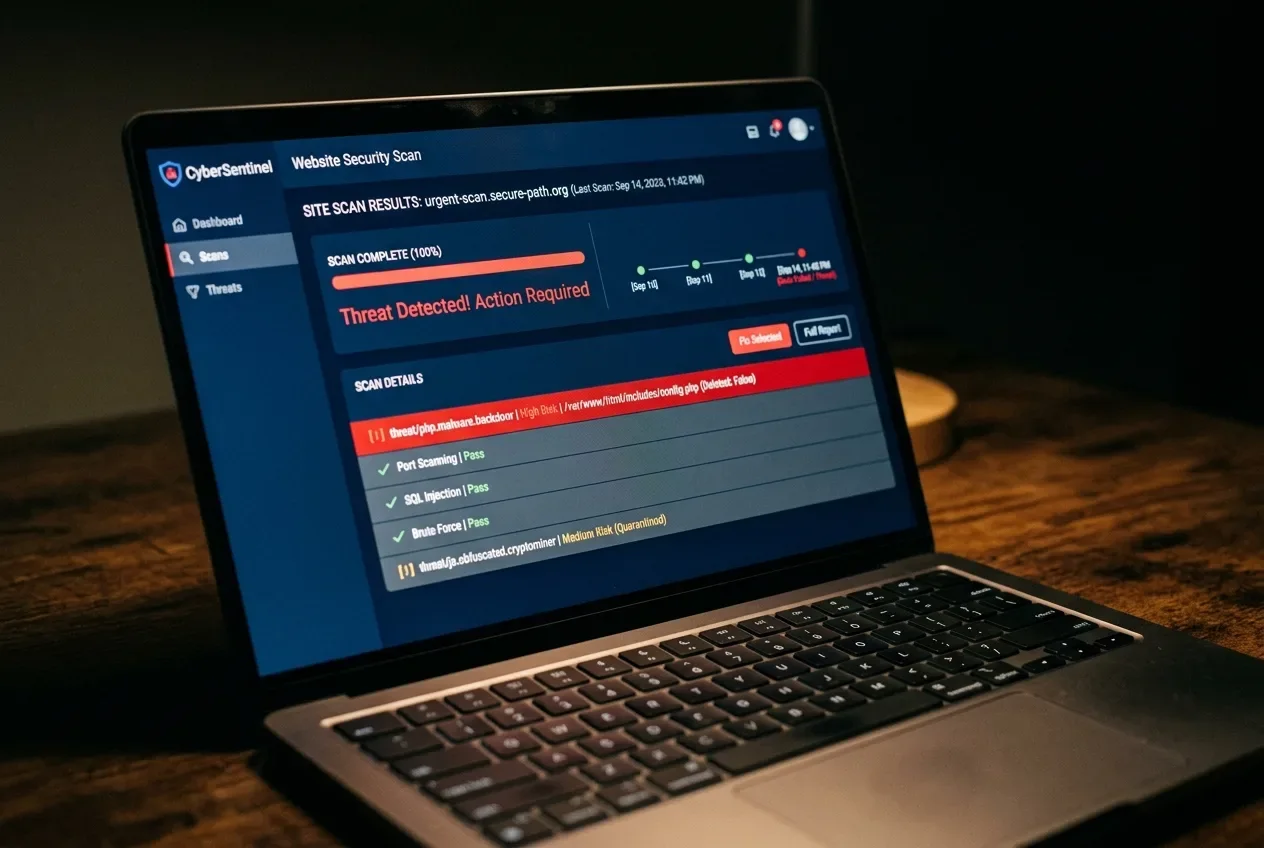
- Scan the restored site with a security plugin or service before considering the job done, not just a visual check that the site loads normally. If you're checking the database by hand as well, Sucuri's guide (opens in a new tab) flags encoded PHP functions commonly used by malware —
base64,eval,exec,assert— as worth searching for specifically, alongside any spam content left over from the compromise window.
Locked out of wp-admin entirely?
If the attacker changed the admin password or email, you don't need the normal login screen to get back in. phpMyAdmin (or whatever database tool your host provides) lets you edit the relevant row directly in the wp_users table, bypassing the login screen entirely — a technique WordPress.org's own guidance (opens in a new tab) points to directly. It's the same general idea already covered in more depth on this site in No FTP Access — Deactivate a Broken Plugin via phpMyAdmin: a different table, but the same "use phpMyAdmin when the normal path is blocked" approach.
If you don't have a clean backup — or you're not sure
Self-restore only works with a confirmed clean point to restore to. Without one, you're choosing between manually finding and removing every piece of the infection (files and database both), or getting help. Reasonable options at this point: a dedicated cleanup service from a security plugin/vendor (Wordfence, Sucuri, and similar all offer this), asking your host directly — many hosting providers, especially managed WordPress hosts, will scan or assist — or professional malware remediation if the site handles anything sensitive, like customer payment data.
This isn't a failure on your part. WordPress.org's own guidance treats exactly this scenario — no clear starting point, no confirmed clean backup — as the harder case that often genuinely benefits from outside help, not something every site owner is expected to handle alone.
After cleanup: request a review if you were blocklisted
If Google or another authority flagged the site, submit a review request only once you've actually confirmed it's clean — sites typically stay flagged until that request goes through, even after the malware itself is gone. Google Search Console handles this for Google's own blocklist; other blocklist authorities (Bing, antivirus vendors) have their own separate review processes.
Verify it actually worked
- The site loads normally, with no unexpected redirects, injected content, or spam
- A fresh security scan comes back clean
- No unfamiliar users remain anywhere —
wp_users, FTP, SSH, or your hosting panel - If the site was blocklisted, that status has actually cleared after your review request, not just been submitted
FAQ
Is it safe to restore a WordPress backup after being hacked?
Yes, conditionally — only if the backup genuinely predates the compromise. Restoring an infected backup just reintroduces the same malware. If you're not sure when the hack happened, work out a rough timeline first (Search Console's Security Issues report, when spam content first appeared, when you first noticed something wrong) before trusting any backup as clean.
How do I know if my backup was taken before or after the hack?
Compare your backup's date against your best estimate of when the compromise happened. Don't rely on file modification timestamps alone, since attackers can alter them — spam content publish dates and Google Search Console's detection date are more reliable signals.
What if I don't have a backup from before the hack happened?
Self-restore isn't a safe option without a confirmed clean point to restore to. At that stage, a dedicated malware cleanup service, your hosting provider, or professional remediation is the more reliable path — especially if the site handles sensitive customer data.
Every guide explains the symptom, likely causes, the safest order of checks and how to confirm the fix. How we check our guides.