UpdraftPlus's error messages are more specific than most WordPress plugins', which is good news once you know how to read them — the exact wording usually points straight at the real cause. This is different from backups silently not running at all, which shows no error message at all, just a missing backup you only discover when you need one. If UpdraftPlus actively tried and failed with a message on screen, you're in the right place. Match your exact error text below to its real cause and fix.
Symptoms
UpdraftPlus shows one of these on the Backup/Restore screen or in its own log page after attempting a backup or restore:
- "'Backup now' button is disabled as your backup directory is not writable"
- "Remote fetch failed — no local copy present"
- "1 backup task(s) have been failed. Please switch to log page to send us the debug information"
- "HTML was detected in the response. You may have a security module on your webserver blocking the restoration operation" (shown during a restore)
- "updraft_send_command: error: error ()"
Likely causes, in order of how often they actually happen
The five error messages below come from UpdraftPlus's own troubleshooting documentation (opens in a new tab), which lists each one with its recommended fix — matching the exact wording is what makes them useful as a lookup.
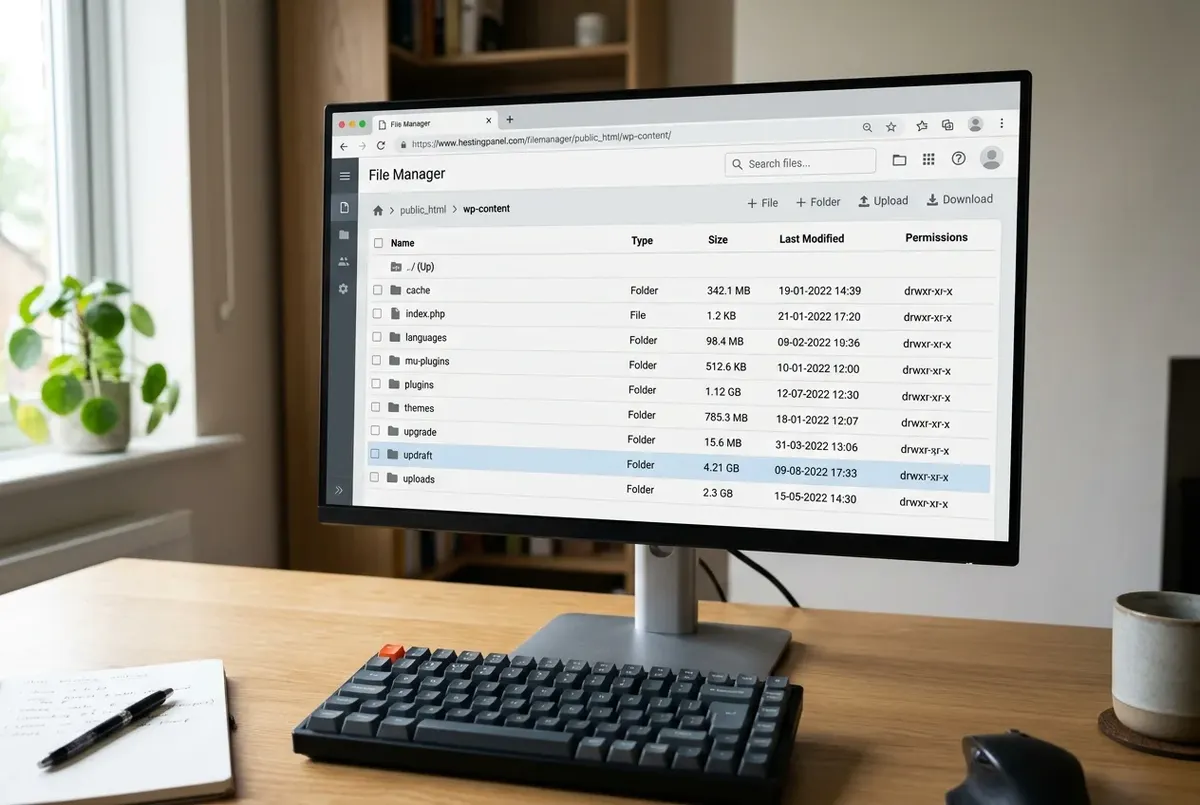
"Backup directory is not writable" almost always means one of two things: wrong file permissions on the local backup folder (wp-content/updraft/ by default), or the server has actually run out of disk space. Permissions issues are more common on hosts that recently changed PHP versions or migrated your account; disk space issues are more common on budget shared hosting with a small storage allocation.
"Remote fetch failed — no local copy present" means UpdraftPlus can't retrieve the backup file. UpdraftPlus's documentation says the most common reason is that the file has been removed (opens in a new tab); a firewall or security plugin blocking the connection is the other. Its recommended fix: download the backup from your remote storage yourself and upload it on the Backup/Restore tab.
"HTML was detected in the response... security module" appears during a restore: instead of the expected response, UpdraftPlus received an HTML page. UpdraftPlus attributes this to a server security module, often mod_security (opens in a new tab), blocking the restoration, and recommends asking your host to disable it for the restore.
"1 backup task(s) have been failed... switch to log page" is a wrapper message, not a real cause on its own. UpdraftPlus is telling you something broke without saying what — the actual reason only shows up in its log (Step 1 below), and UpdraftPlus also suggests switching on debug mode (opens in a new tab) under Settings → Show expert settings and sending the PHP error log if the reason isn't clear. The log typically ends with one of two things: a line naming a specific PHP error (memory, timeout, a fatal error from another plugin conflicting during the backup process), or a note that a particular file or database table couldn't be read or written, which usually points back to the disk space or permissions cause above.
"updraft_send_command: error: error ()" is, according to UpdraftPlus, typically caused by a plugin, firewall or security-plugin conflict (opens in a new tab). Deactivate suspected plugins (security and optimization plugins first) and retry; if nothing changes, send the PHP error log from the time of the failure to your host or to UpdraftPlus support.
Two more causes aren't tied to one specific error string, and can produce several different-looking messages depending on exactly where the process died. The first is PHP memory_limit exhaustion on large database tables — exporting and compressing a database is far more memory-intensive than backing up plain files, so big sites hit this well before file-based limits become a problem. The second is PHP max_execution_time timing out on shared or budget hosting with conservative default limits. A third, easy to miss: UpdraftPlus stages the backup locally in wp-content/updraft/ before uploading it to remote storage. A full local disk fails the backup even when your Dropbox or S3 account has plenty of free space.
Fix it: lowest-risk steps first
Step 1 — Check UpdraftPlus's own log page directly
Before changing anything, open the log of the failed run: on UpdraftPlus's Backup / Restore tab, the last log message is shown with a link to download the most recently modified log file. This single step often narrows down which of the causes above actually applies, since the generic on-screen error rarely tells the whole story — the log usually does.
Scroll to the bottom of the log first, not the top. The last few lines are where the actual failure gets recorded, while the earlier lines are mostly routine progress messages (which tables were exported, which files were archived). Look specifically for the words "fatal error," "memory," "timeout," or "permission denied" — any of those four point directly at one of the causes above rather than requiring more guessing.
Step 2 — Fix local disk space and backup directory permissions
Check your hosting control panel for available disk space first — this addresses both the "not writable" error and the local-staging-space issue directly. If space is fine, check that wp-content/updraft/ has standard WordPress-writable permissions (755 for the directory). This step changes nothing risky; it only corrects a permission or clears space.
Step 3 — Check for a firewall or security plugin blocking the connection
If you're seeing the remote fetch or HTML/security module error, check your server's firewall rules and any WordPress security plugin (Wordfence, Sucuri, etc.) for a rule blocking the request. On aaPanel, check the panel's own firewall settings too, not just WordPress-side plugins — aaPanel's firewall operates as a separate layer that WordPress security plugins can't see or control.
Step 4 — Raise PHP memory and execution time limits
If large database tables are the likely cause, raise memory_limit to at least 256M and max_execution_time to at least 300 seconds through your hosting control panel's PHP settings. This is a configuration change, not a code change, and it's safe to leave at these higher values permanently — they're recommended baselines for a WordPress site running any backup plugin on non-trivial data.
Database exports are the specific reason this matters more for backups than for normal WordPress usage: UpdraftPlus has to read every table into memory, serialize it, and compress it before writing the result to disk, which is a heavier operation than almost anything else WordPress does day to day. A site with a large wp_options table (common after years of plugin churn) or a busy WooCommerce order history can hit these limits well before the rest of the site shows any sign of strain.
Step 5 — Contact your host with the PHP error log, if nothing above resolves it
The "updraft_send_command" error specifically, and any case where the log page itself doesn't point to a clear cause, usually needs server-level access to diagnose fully. Pull the relevant lines from your host's PHP error log around the time of the failed backup and send them directly — this gets a faster, more specific answer than describing the symptom alone.
Verify the fix
Run a manual backup ("Backup Now" in UpdraftPlus) and let it complete fully. Check the log page for a clean completion message, not just the absence of a red error banner on the main screen — a backup can appear to finish while still logging a partial failure that's easy to miss if you only glance at the summary. If your fix addressed a remote storage connection issue specifically, also confirm the backup file actually appears in your remote destination, not just that UpdraftPlus reports success locally. A backup that completes but never uploads is a partial fix, not a full one.
If you need to roll back
Every fix above — permissions, PHP settings, a firewall exception — is non-destructive and doesn't touch your existing backups or site content. If a change doesn't help, simply revert whichever setting you adjusted; there's nothing here that requires restoring from a backup to undo.
Related fixes
- Your WordPress Backups Might Not Be Running — if there's no error message at all, just a missing backup you discovered too late.
- 'Packet Bigger Than max_allowed_packet' Backup Import Fix — if the backup itself was fine, but restoring it is what's failing.
- Is aaPanel's Firewall Blocking Your WordPress REST API? — if you're on aaPanel and suspect the remote fetch or security module error.
- The Best WordPress Backup Plugins (And Common Fixes) — for the full picture of backup plugin choice and common issues.
FAQ
What does "remote fetch failed, no local copy present" mean in UpdraftPlus?
It means UpdraftPlus can't retrieve the backup file. UpdraftPlus's own documentation (opens in a new tab) says the most common reason is that the file has been removed; a firewall or security plugin blocking the connection is the other. Downloading the backup from your remote storage and uploading it on the Backup/Restore tab resolves it.
Why does UpdraftPlus fail even though I have plenty of storage space in Dropbox or S3?
UpdraftPlus stages every backup locally in wp-content/updraft/ before uploading it to remote storage. If your server's local disk is full, the backup fails at the staging step regardless of how much free space your remote destination has — the remote account is never actually reached.
Where do I find UpdraftPlus's actual error log, not just the on-screen message?
On the Backup / Restore tab: the last log message appears near the top with a link to download the most recently modified log file, and backups in the existing-backups list have their own log links. The generic on-screen message ("1 backup task(s) have been failed") is a summary — the log almost always names the actual underlying cause.
Every guide explains the symptom, likely causes, the safest order of checks and how to confirm the fix. How we check our guides.